The school platform, page by page: teacher, mentor & student
The journal grew into a full platform for trading schools, and it runs on three roles working as one pipeline: a teacher authors the course, a mentor reviews the work, and a student learns step by step. This guide walks every page each role touches, with a real screenshot of each.
At a glance
- Teacher — owns a school, builds courses (modules → topics → classwork), and invites mentors and students.
- Mentor — grades submissions, discusses them inline, and tracks mentees on a board.
- Student — watches lessons and does homework in order, with mentor feedback attached to each answer.
- Everything lives under two tabs: Teaching for staff, Learn for students.
👨🏫 Teacher
The teacher owns the school and everything in it — courses, structure, and who gets in. Every teacher screen sits under the Teaching tab.
The school dashboard
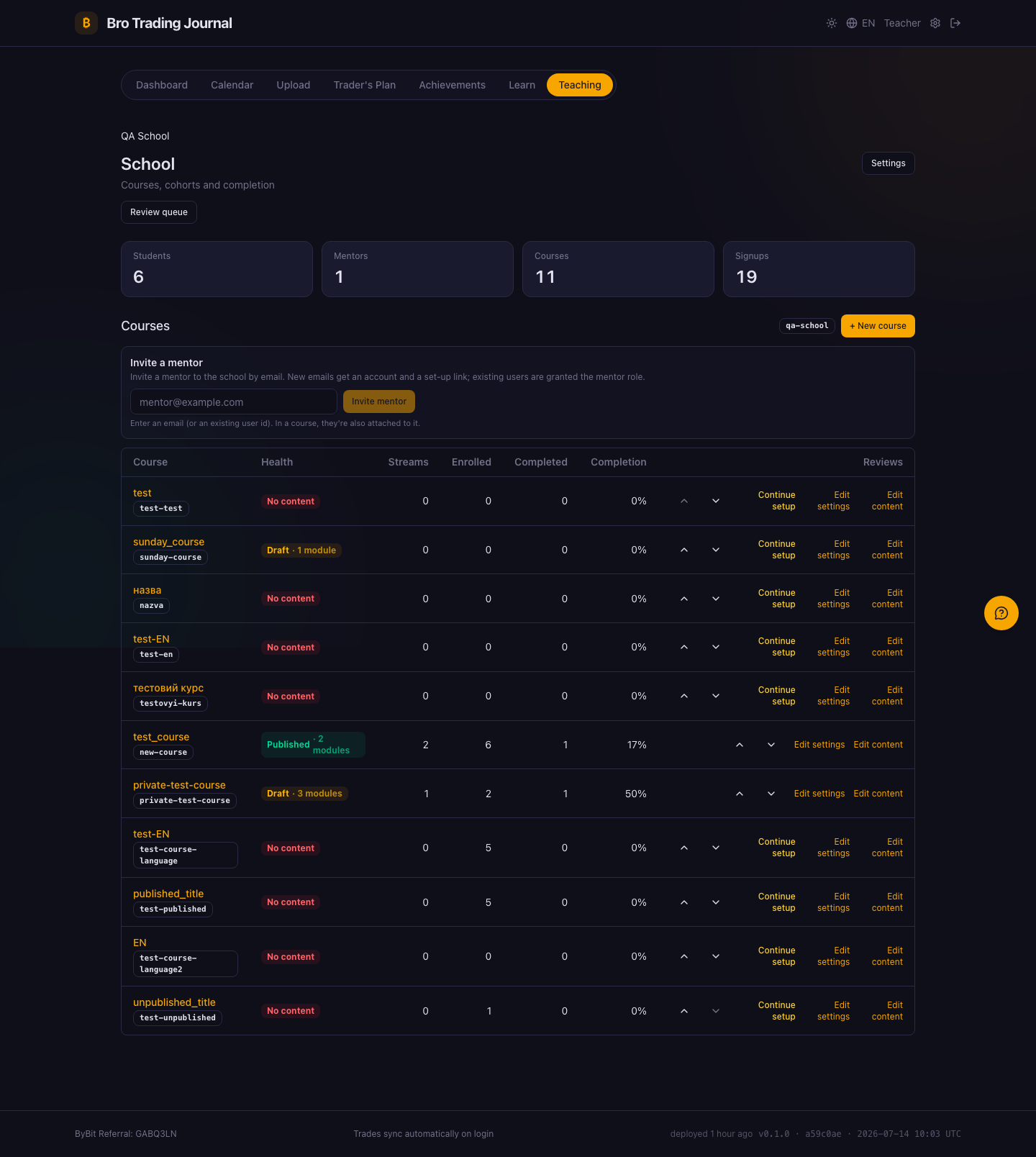
Your school dashboard opens with KPI tiles (students, mentors, courses, signups), an invite-a-mentor box, and a table of every course with its content health, cohorts, enrollment and completion rate.
Create a course with the wizard
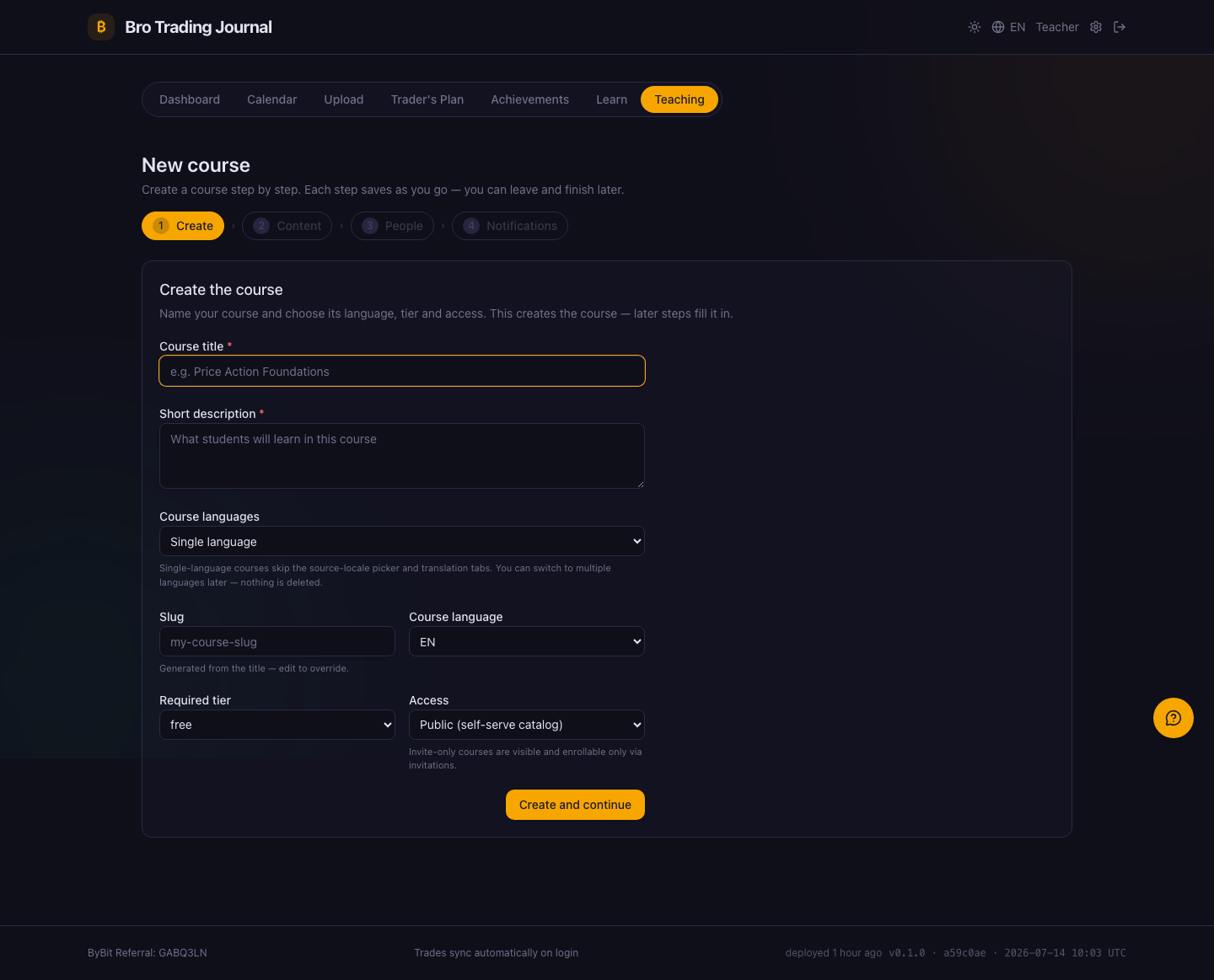
+ New course starts a short wizard. Step one names the course and picks its language; the later steps add content, people and notifications — and everything is saved as you go, so you can leave and resume from where you stopped.
The course hub
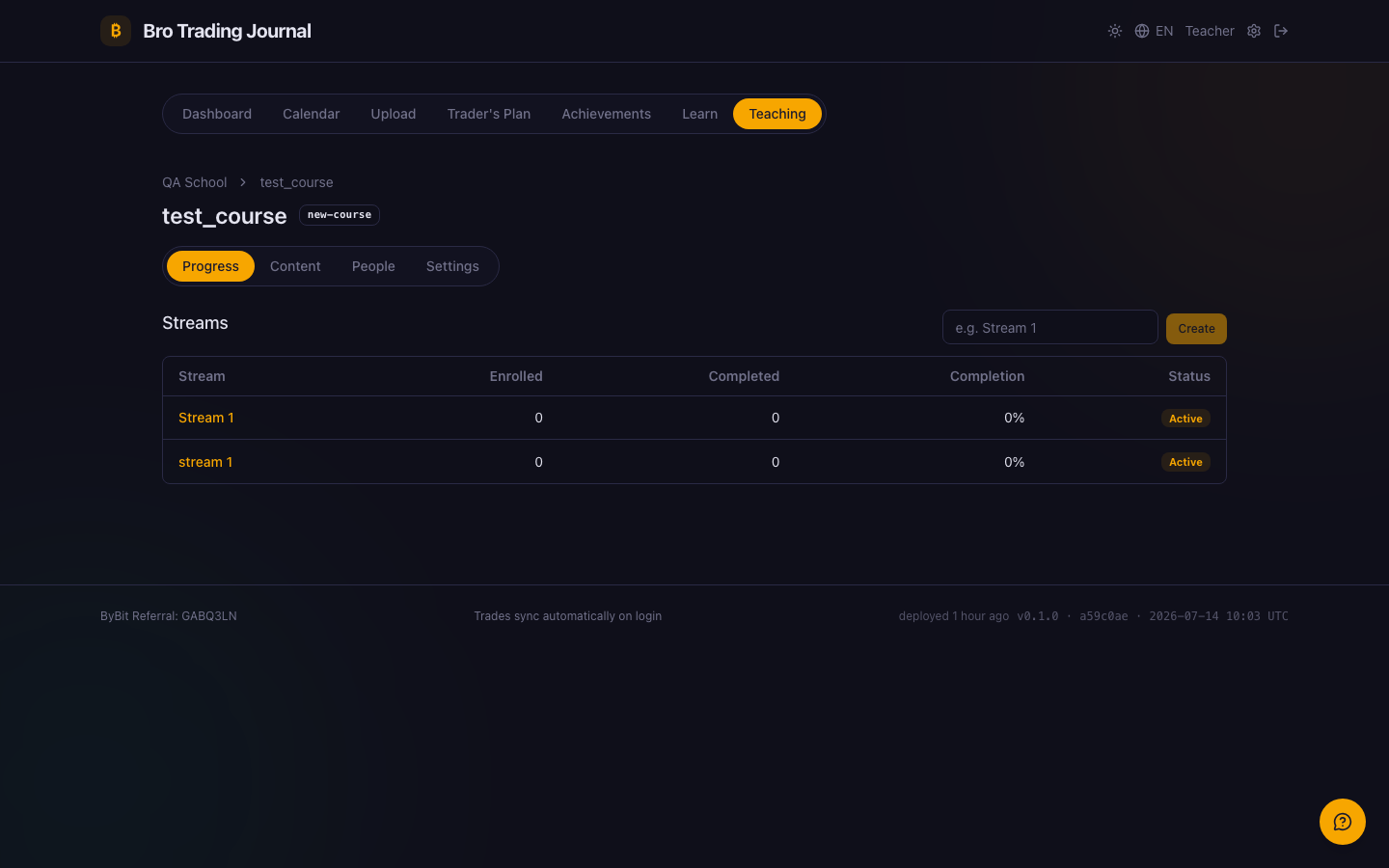
Each course opens as a tabbed hub. The default Progress tab lists the cohorts (streams) you run the course in, each with its enrolled and completed counts and a live completion rate.
Build the structure
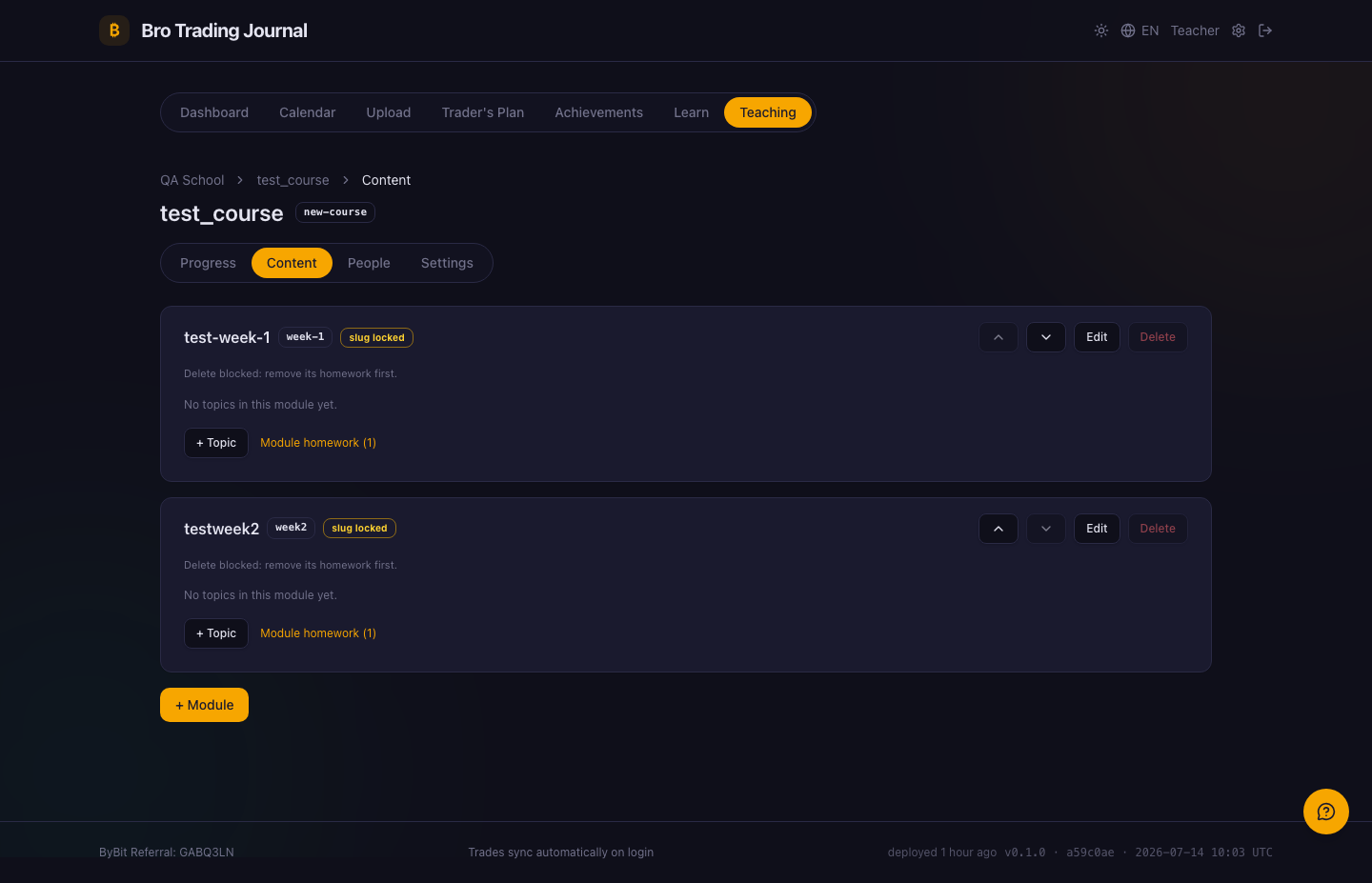
The Content tab is the structure editor. You build the course as a tree — modules, then topics (each carrying a video and PDF materials), then classwork — and edit it all inline.
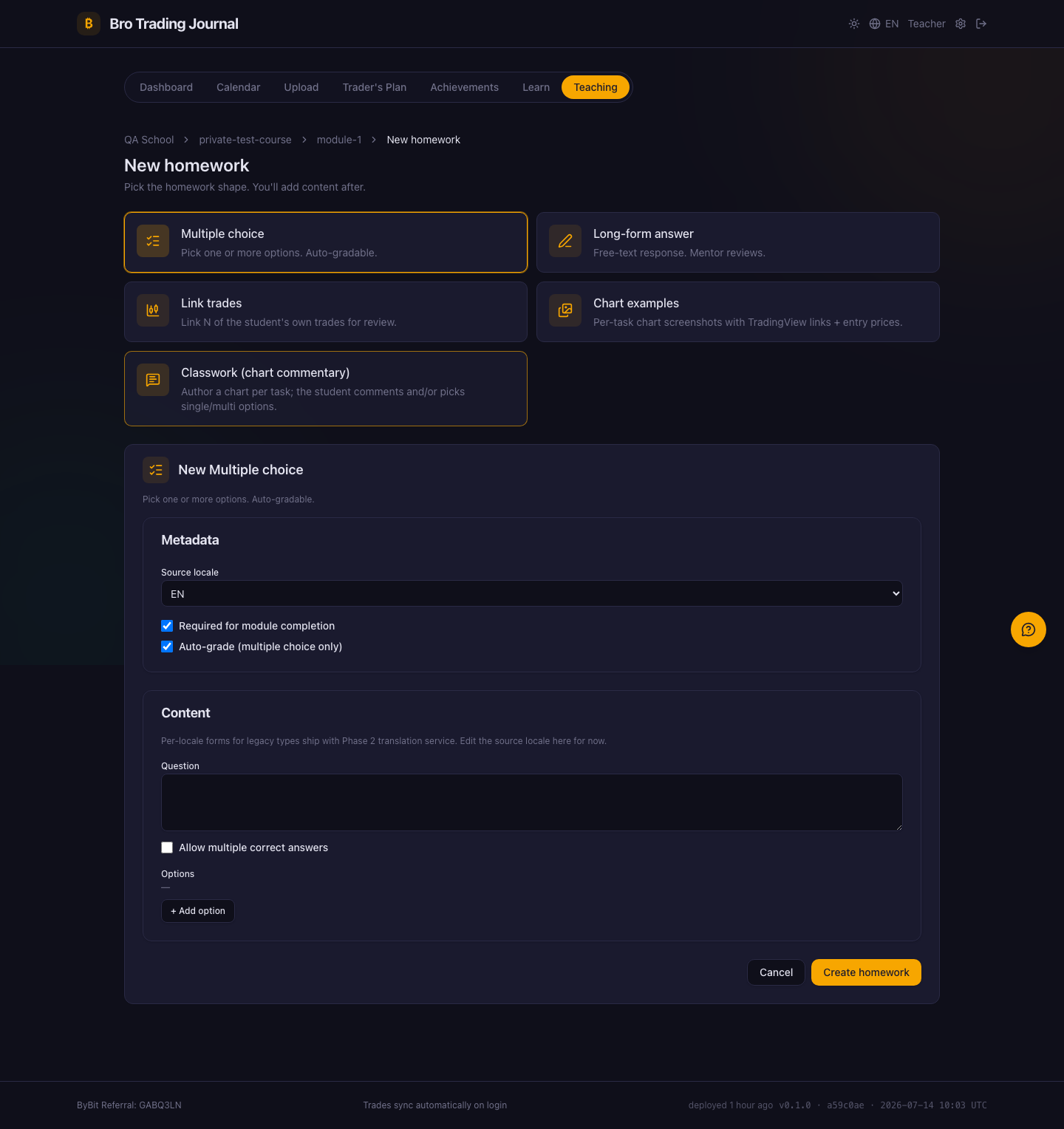
Pick a homework shape
Adding homework starts with a shape picker. Choose multiple choice, long-form answer, link trades, chart examples, or classwork (chart commentary) — each card explains what the shape does.
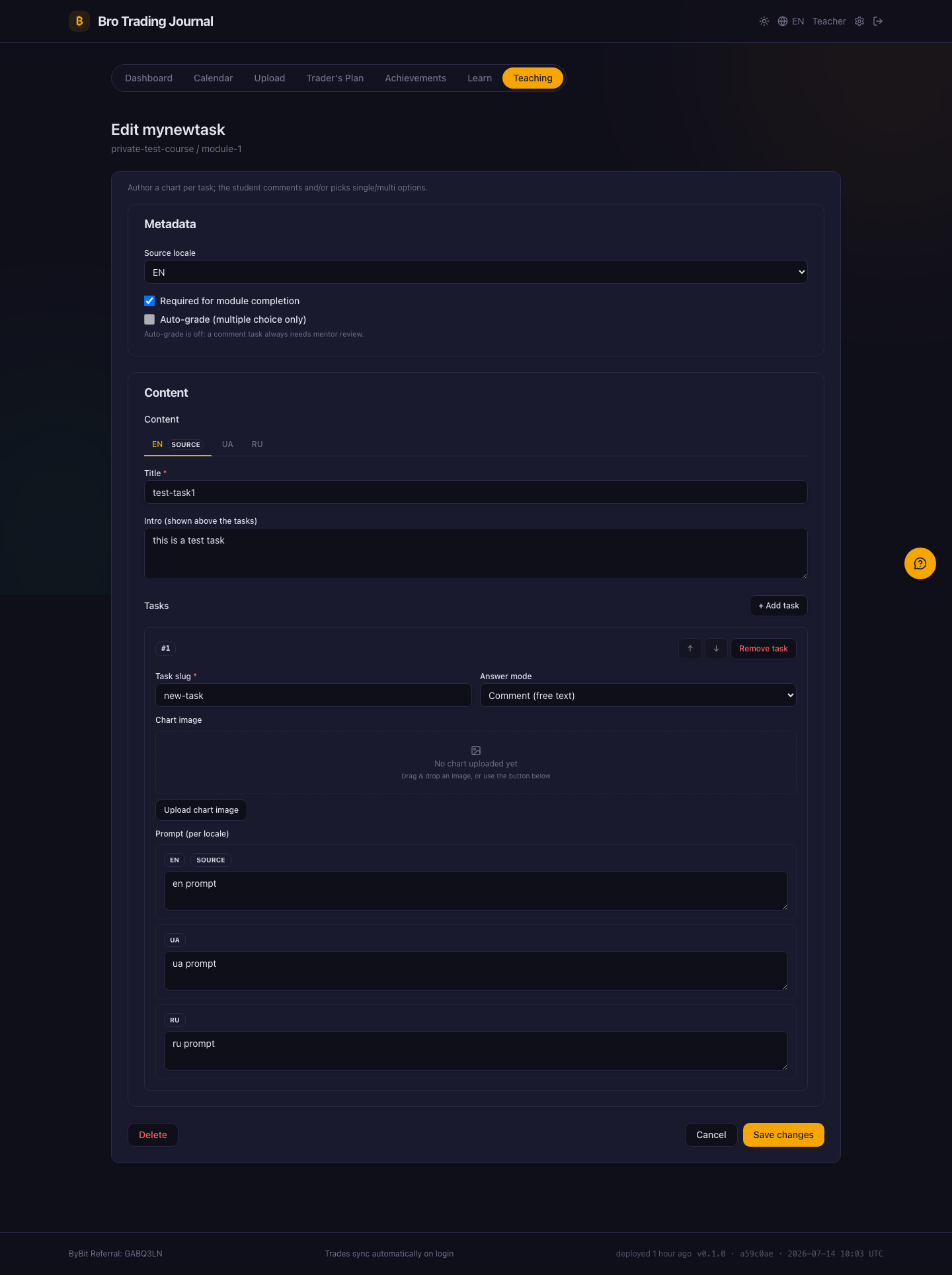
Author classwork
Classwork is the chart-commentary shape: attach a chart per task and ask the student to comment on it or pick options. You author it once in the source language and translate it in the EN / UA / RU tabs.
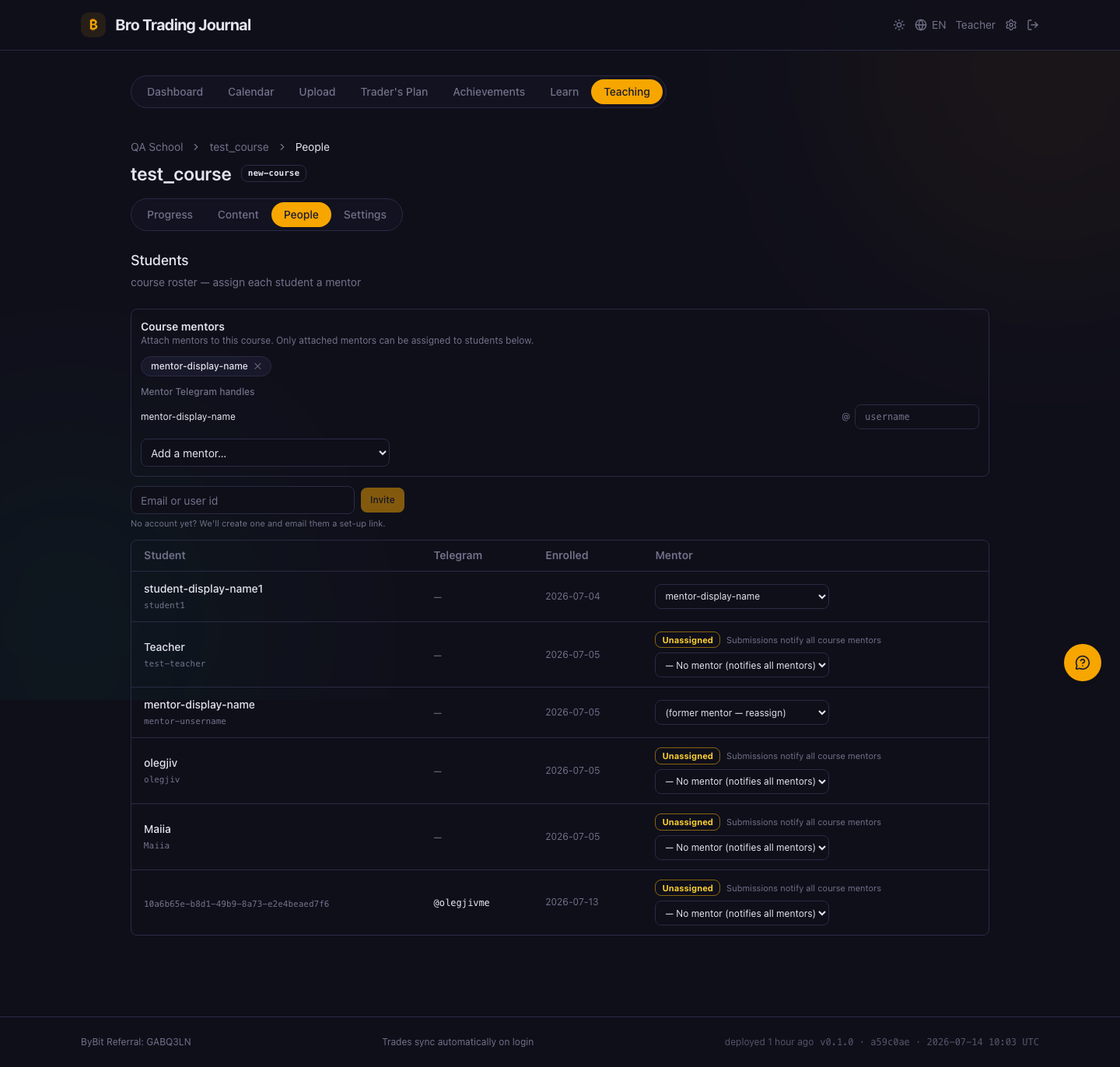
Add mentors and students
The People tab is the course roster. Attach mentors from your school's pool, assign each student a mentor, and invite new students by email.
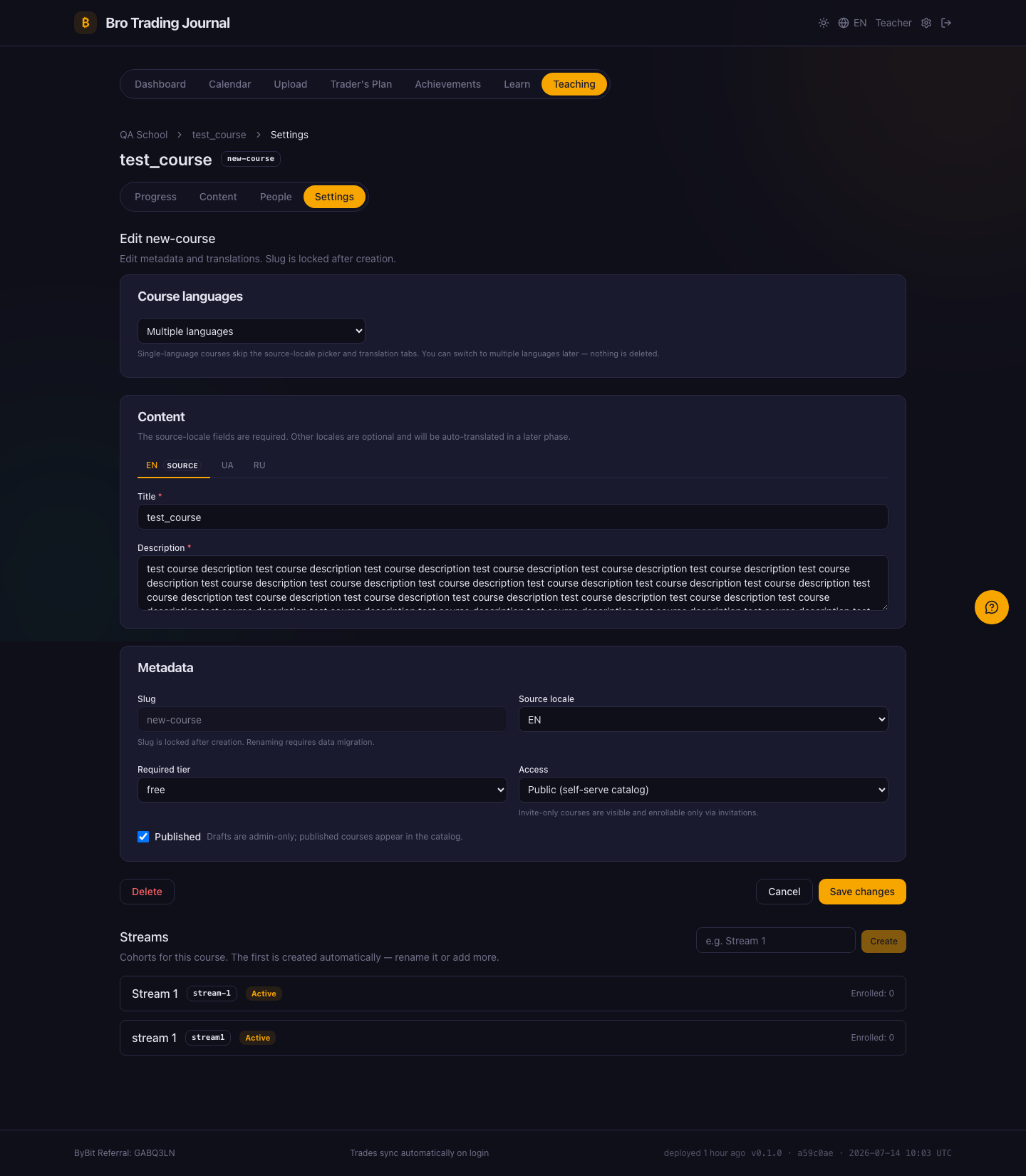
Settings and cohorts
The Settings tab holds the course metadata and translations, plus cohort management — create, rename or archive the streams you run the course in.
The review queue
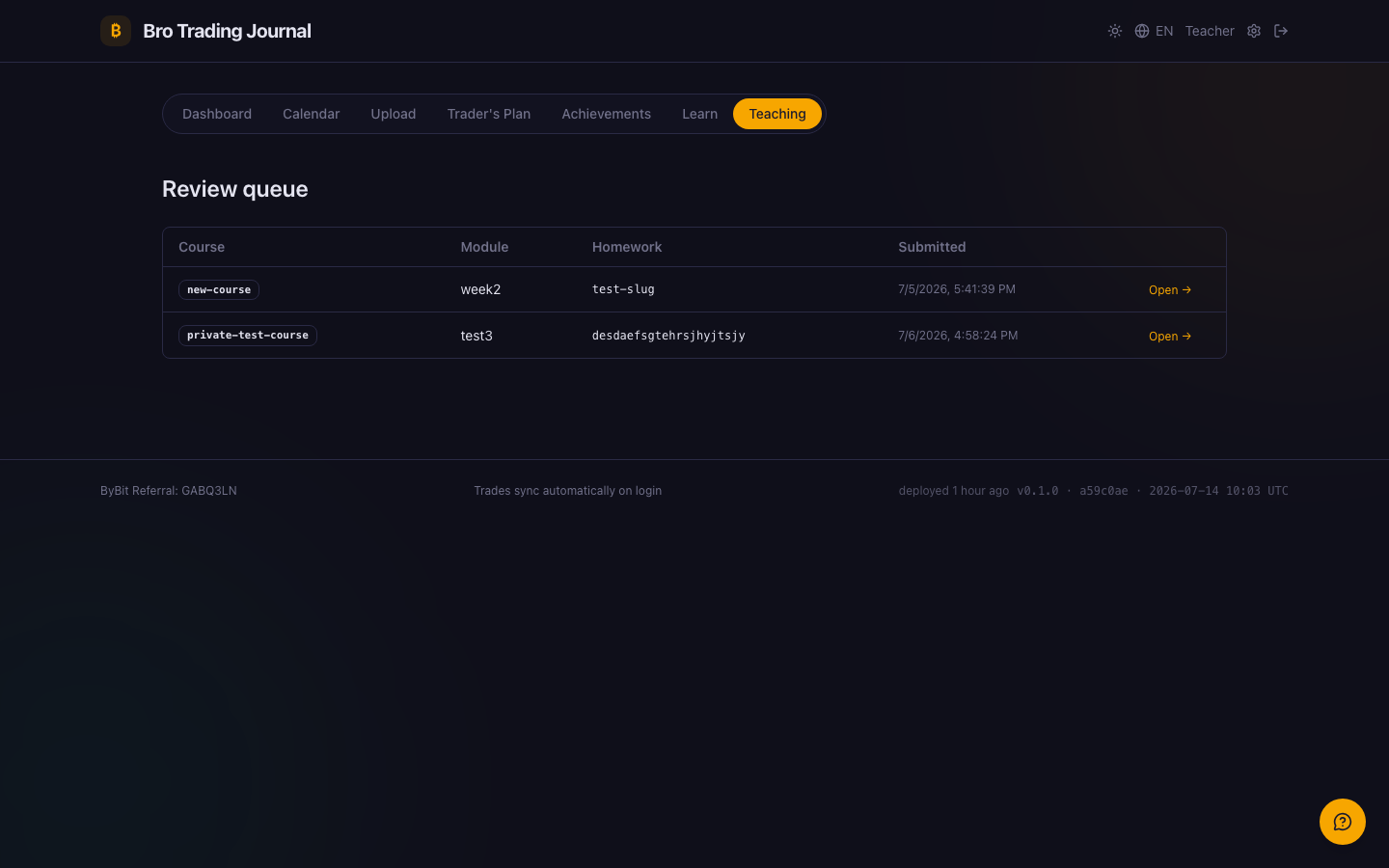
The Review queue collects every submission waiting for a grade across your courses, newest first, each linking straight to its review.
Grade a submission
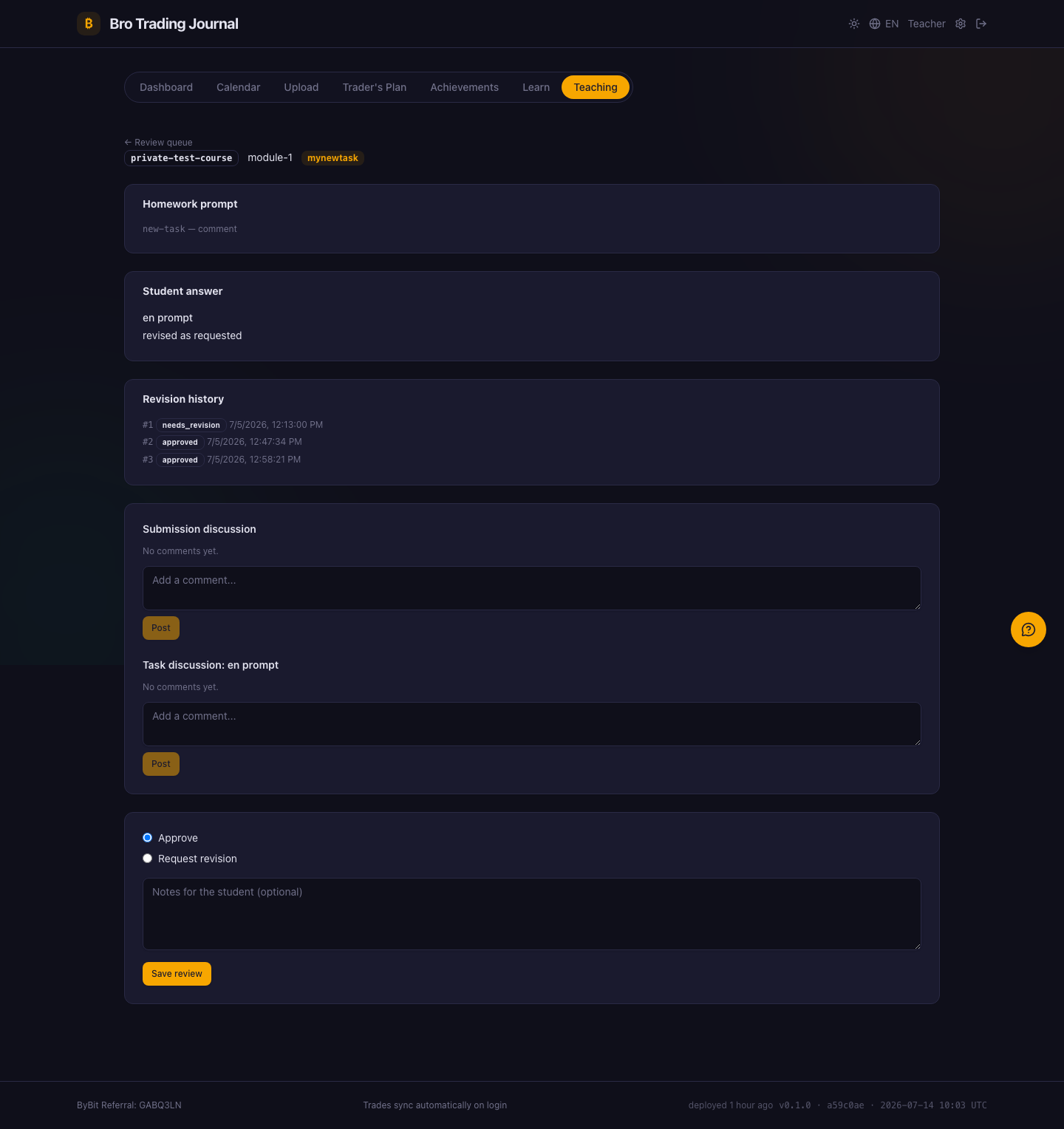
Opening a submission shows the homework prompt, the student's answer, the full revision history, a comment thread per task, and the Approve / Request revision form with optional notes.
🧑🏫 Mentor
The mentor is the person who works with students live — grading their work and keeping each mentee on track. A mentor reaches the same Teaching surfaces, scoped to the courses they mentor.
The review queue
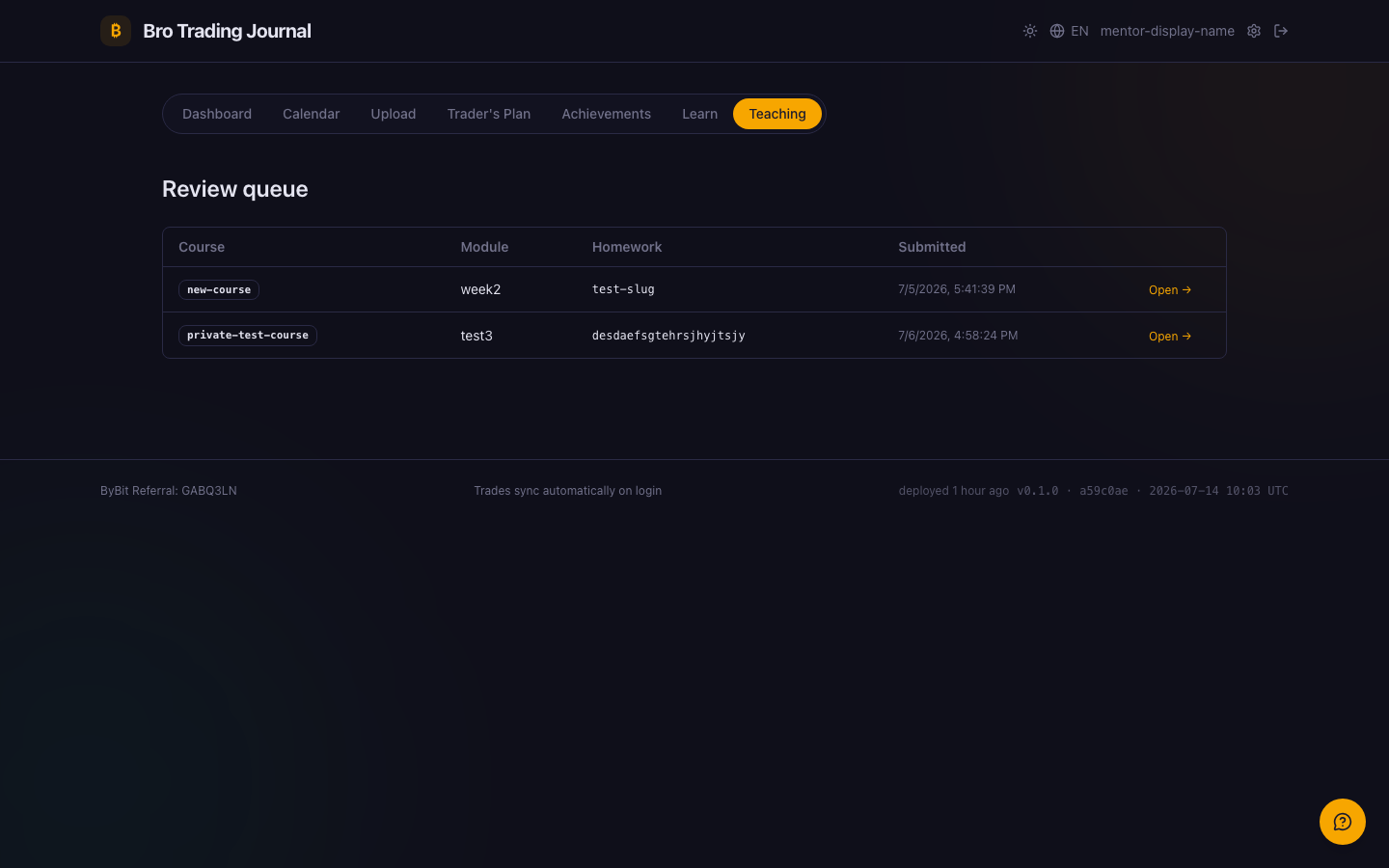
A mentor opens the review queue and sees exactly the submissions from the courses they mentor, waiting to be graded.
Grade and discuss
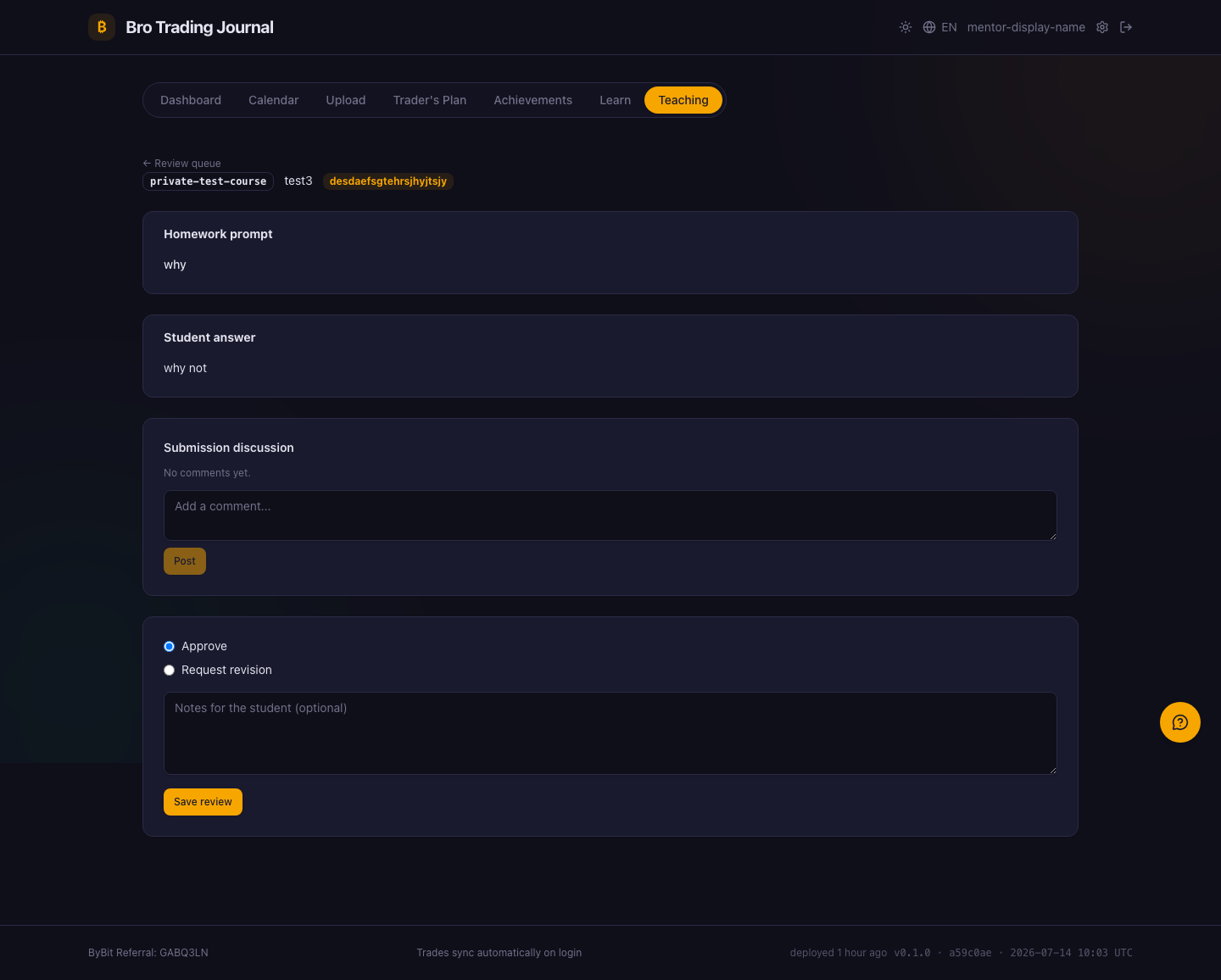
Open a submission to read the answer, set Approve or Request revision, and discuss it right under the work with comment threads — no messenger needed. A Telegram ping also lands in the school's mentor group the moment a student submits.
The "My students" board
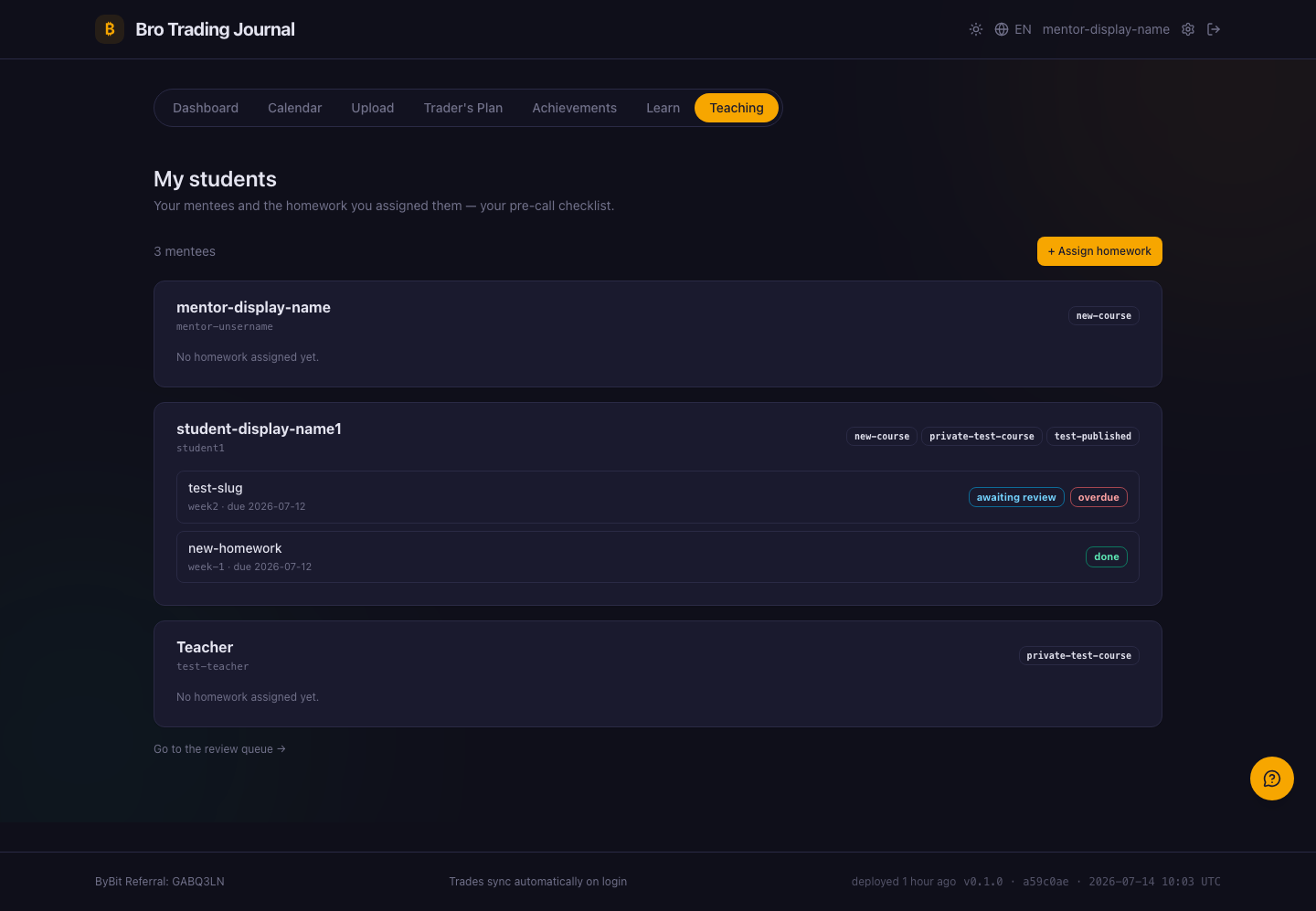
The My students board is the mentor's pre-call checklist: every mentee with their current module, classwork progress and assigned homework, each carrying a status — awaiting review, overdue, or done.
Assign personal homework
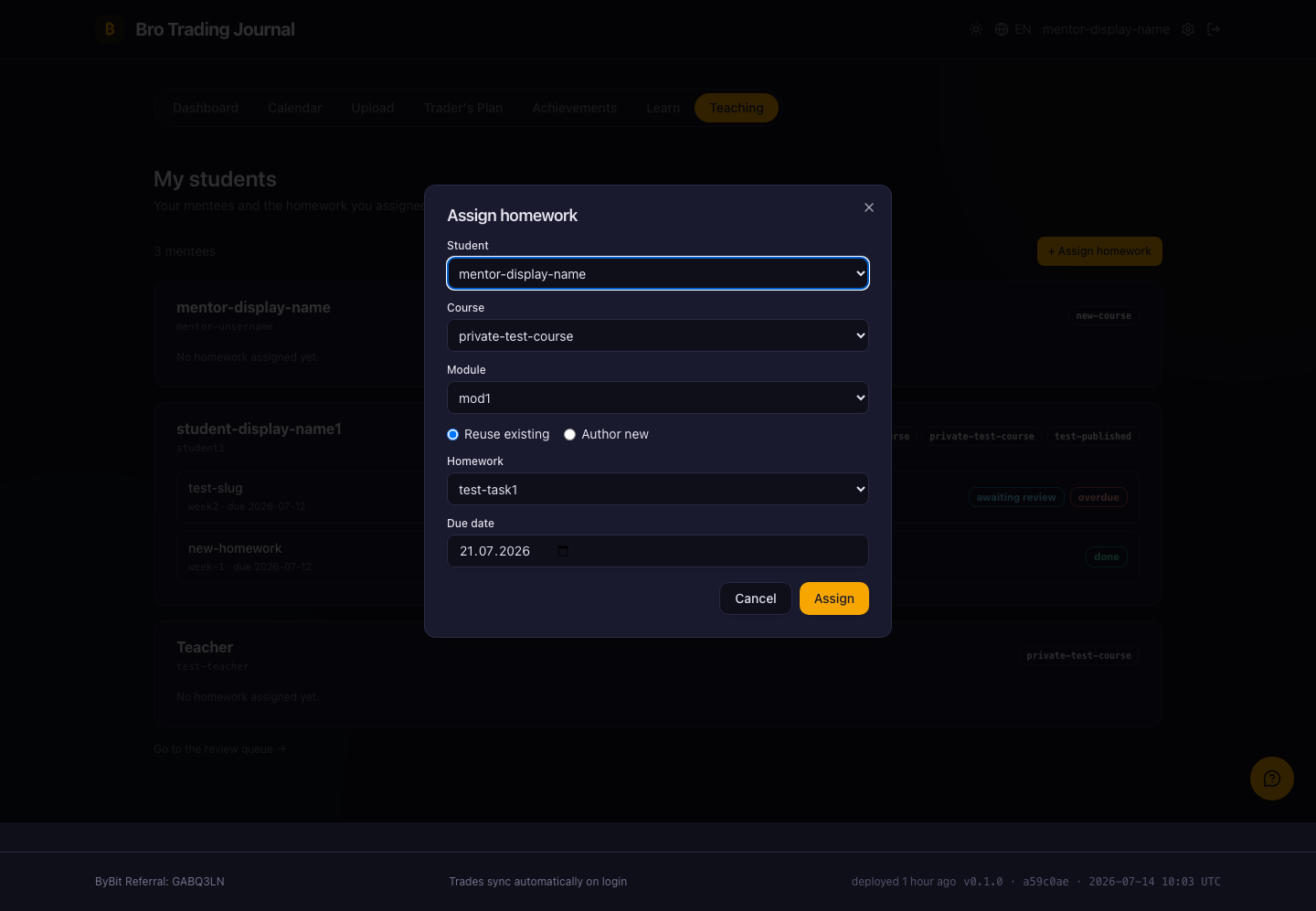
+ Assign homework opens a dialog to give one mentee a specific task under a module, with a due date — either reusing an existing homework or authoring a new one.
🎓 Student
The student sees only the Learn tab — courses, lessons and homework, in order, with the mentor's feedback attached to every answer.
The catalog
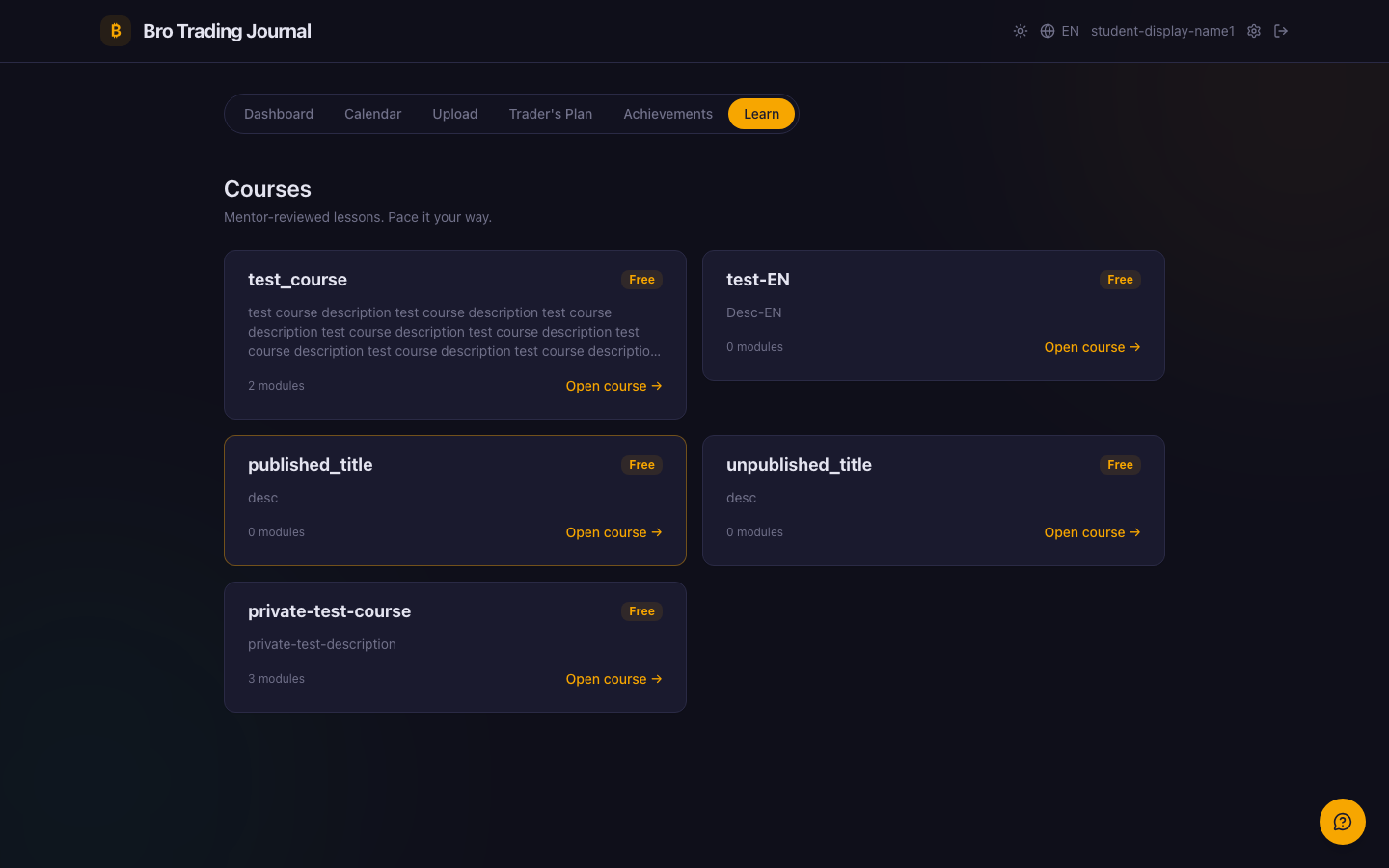
The Learn catalog lists the courses you are enrolled in or can enroll in, each opening to its own page.
Inside a course
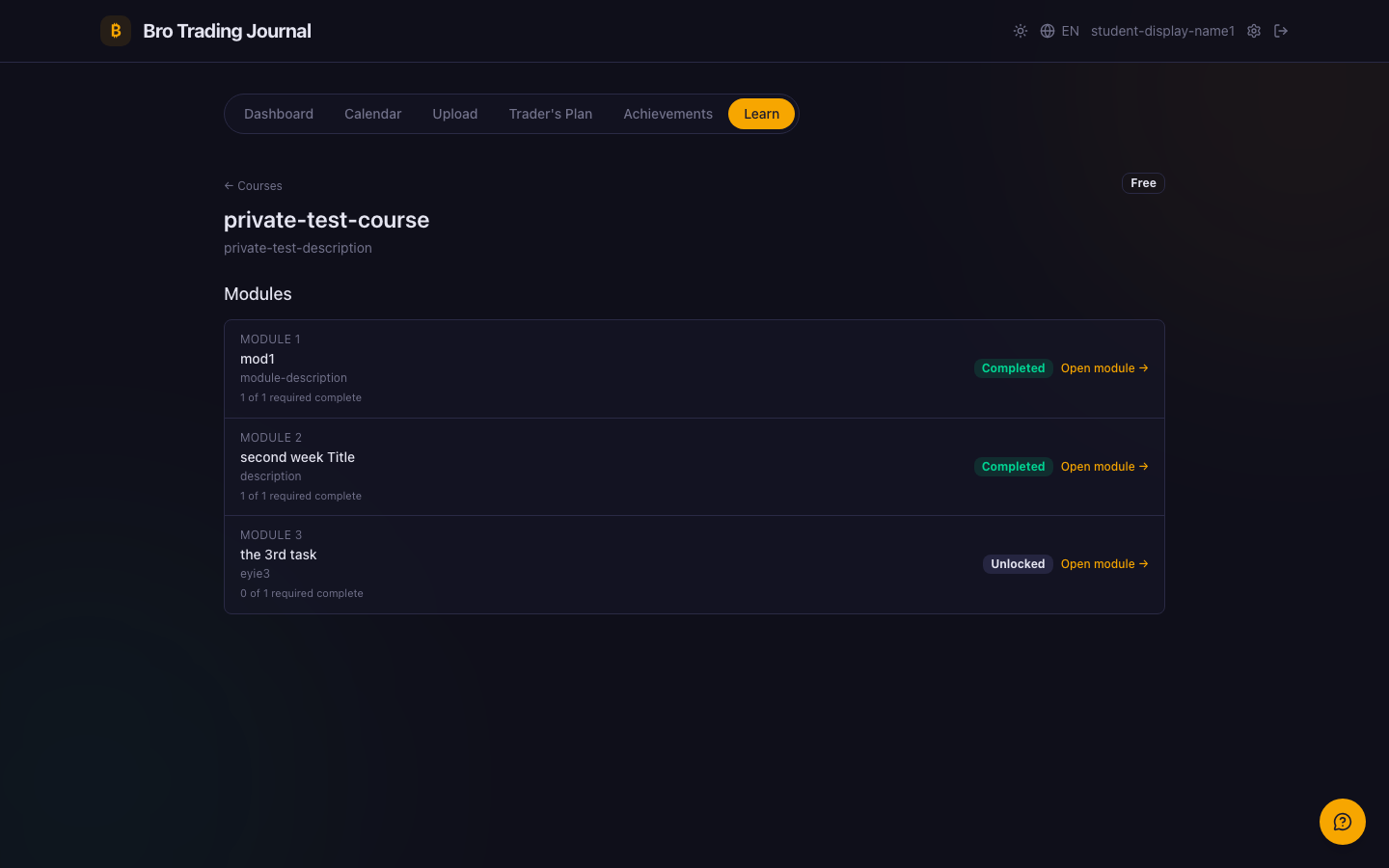
Open a course to see its modules and your progress. A module stays locked until you finish the required work in the module before it, so the path is honest and sequential.
A module: watch, then do
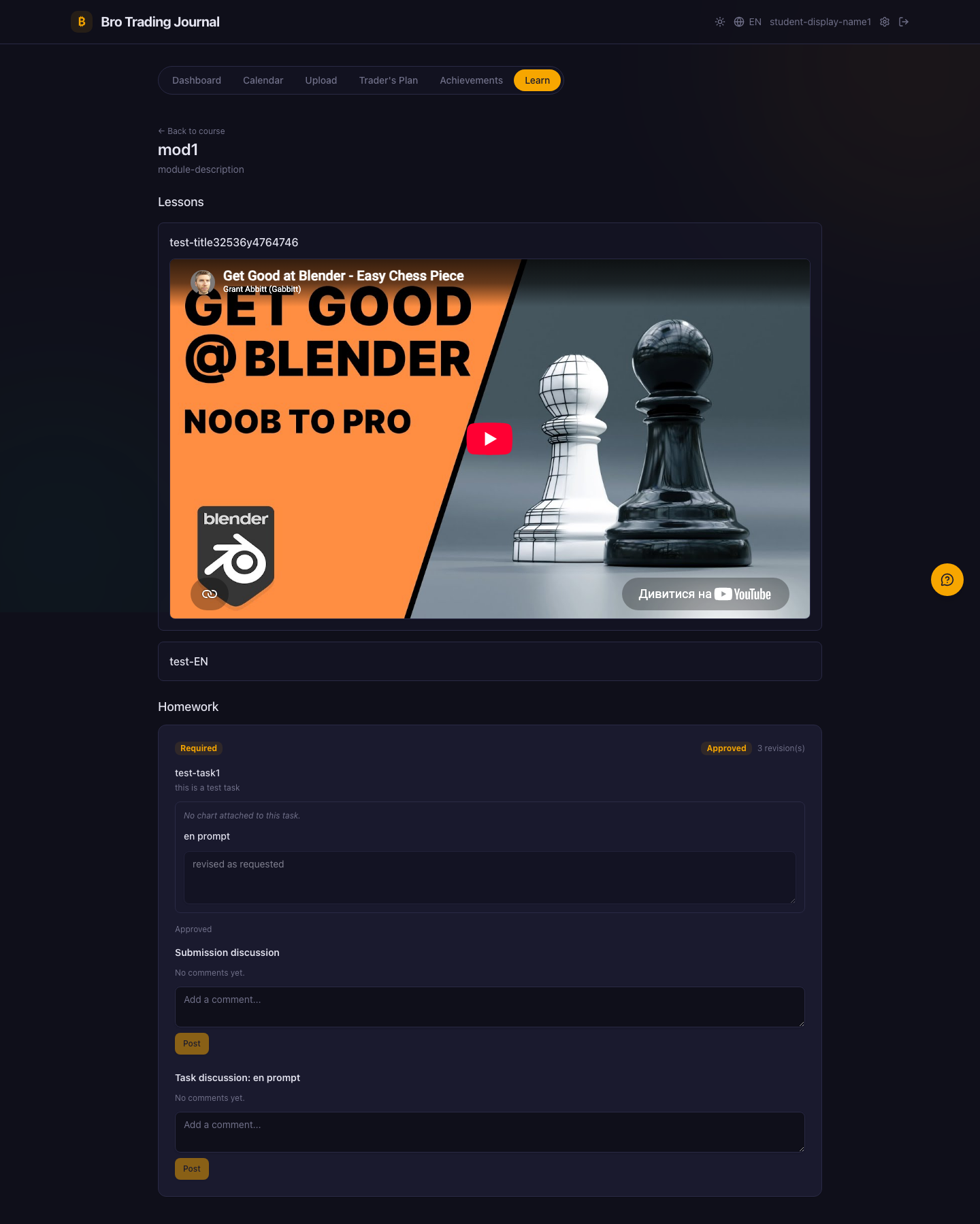
Inside a module you watch the topic videos and open the PDFs, then do the classwork — comment on the chart or answer the question. Your submission goes to a mentor, and the feedback comes back as comments right under your answer.
Homework from your mentor
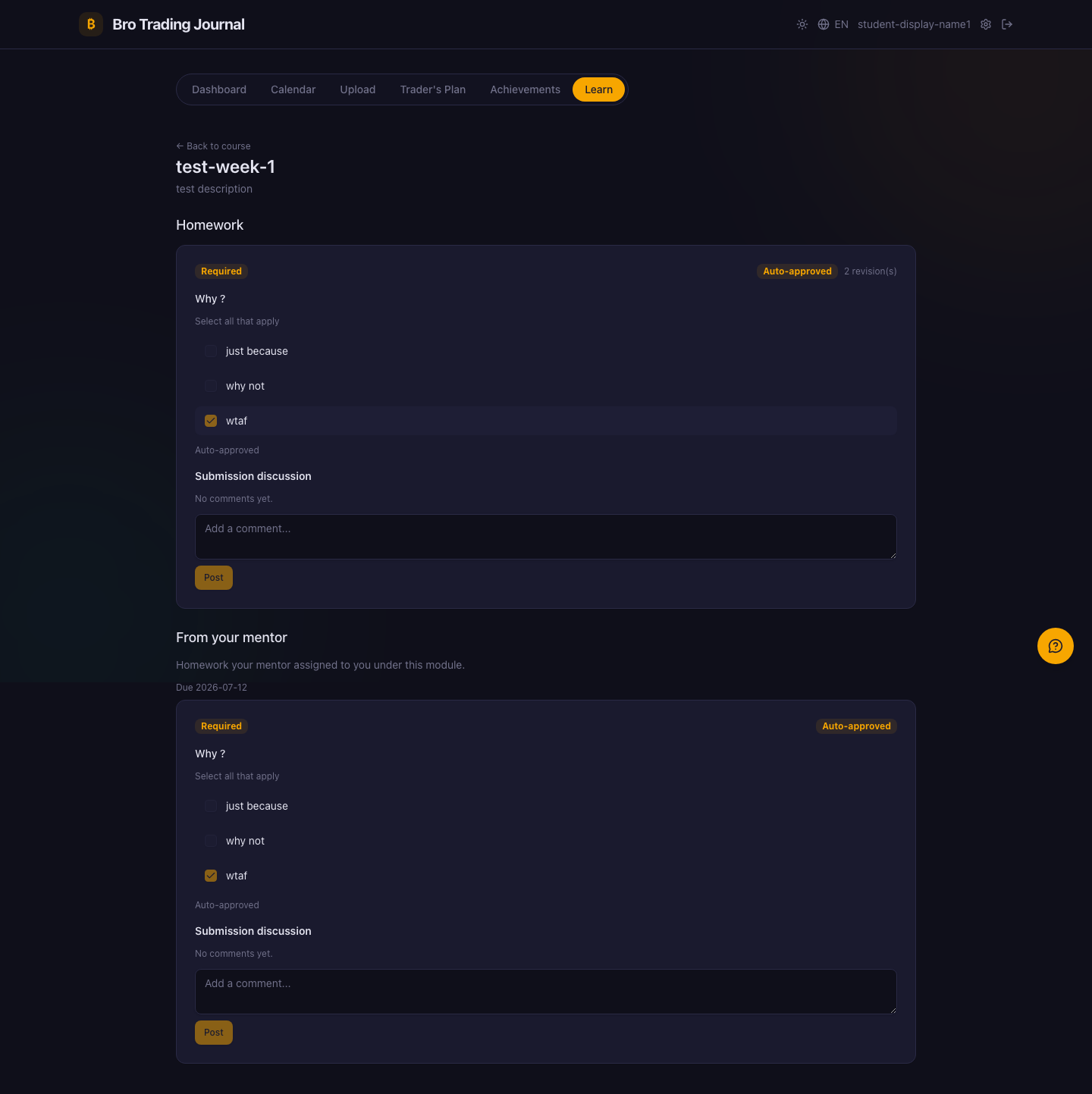
A separate From your mentor block shows personal homework your mentor assigned under the module, with its due date — sitting right alongside the course's own classwork.
Summary
One platform, three roles, one clean pipeline:
- 👨🏫 Teacher — build a school and courses, structure them as modules → topics → classwork, and invite mentors and students.
- 🧑🏫 Mentor — grade submissions, discuss them inline, assign personal homework, and track every mentee on one board.
- 🎓 Student — learn in order, with locked modules keeping progress honest and mentor feedback attached to each answer.
Want to take a course, or bring your own school onto the platform? Start from the Learn tab, or open your dashboard.