Never miss FOMC or CPI again: follow a release, get the alert on your phone
The Fed decision comes out while you are on the road, or asleep, or deep in another chart. You find out from a candle that ran through your stop. This week's update is for that moment.
Now you follow a release once, and BroTrades tells you before it prints, every time. In the bell at the top of the app, and on your phone or computer, even when BroTrades is closed.
At a glance
- Follow a release: tap the bell on any row of the economic calendar. You follow every future occurrence, not one date.
- One alert per headline release: the Fed's rate, statement and press conference come as one alert.
- A bell in the header: today's alerts, such as "FOMC decision in 15 min".
- Pick how early: 5, 15, 30 or 60 minutes before. 15 unless you change it.
- Install BroTrades as an app on iPhone, Android or a computer.
- Alerts on your phone: forecast and previous in the text, in your language. A tap opens that day in your calendar.
The screenshots come from a test account with made-up follows, deleted afterwards. The calendar is last week's real schedule, with the clock set to 19:45 Kyiv time on the day of the Fed decision.
🔔 Follow a release, not a date

Open the economic calendar. Every release has a bell at the end of its row. Tap it, and you follow that release for good: every FOMC decision, every US CPI, every NFP, until you stop. A short message confirms it: "Following FOMC decision — 15 min before", with a button to change the time.
The same bells sit on the releases in the Day view of your trading calendar, so you can follow from the page where you plan the day.
Headline releases are one alert. The calendar prints the Fed's decision as up to four rows: the rate, the statement, the projections and the press conference. Tap the bell on any of them and you follow the decision, with one alert for all of it. The same goes for:
- US CPI (headline and core, month and year);
- US NFP (payrolls, unemployment rate, average hourly earnings);
- the rate decisions of the ECB, Bank of England, Bank of Japan, RBA, Bank of Canada, SNB and RBNZ.
The press conference comes with the decision. The FOMC Minutes are a separate release with their own bell. So is a central bank head's speech: follow one and you get every speech by whoever holds the job.
Every release has a bell, whatever its impact. Holidays and meetings that run over several days don't, because there is no moment to warn you about.
📬 The bell in the header
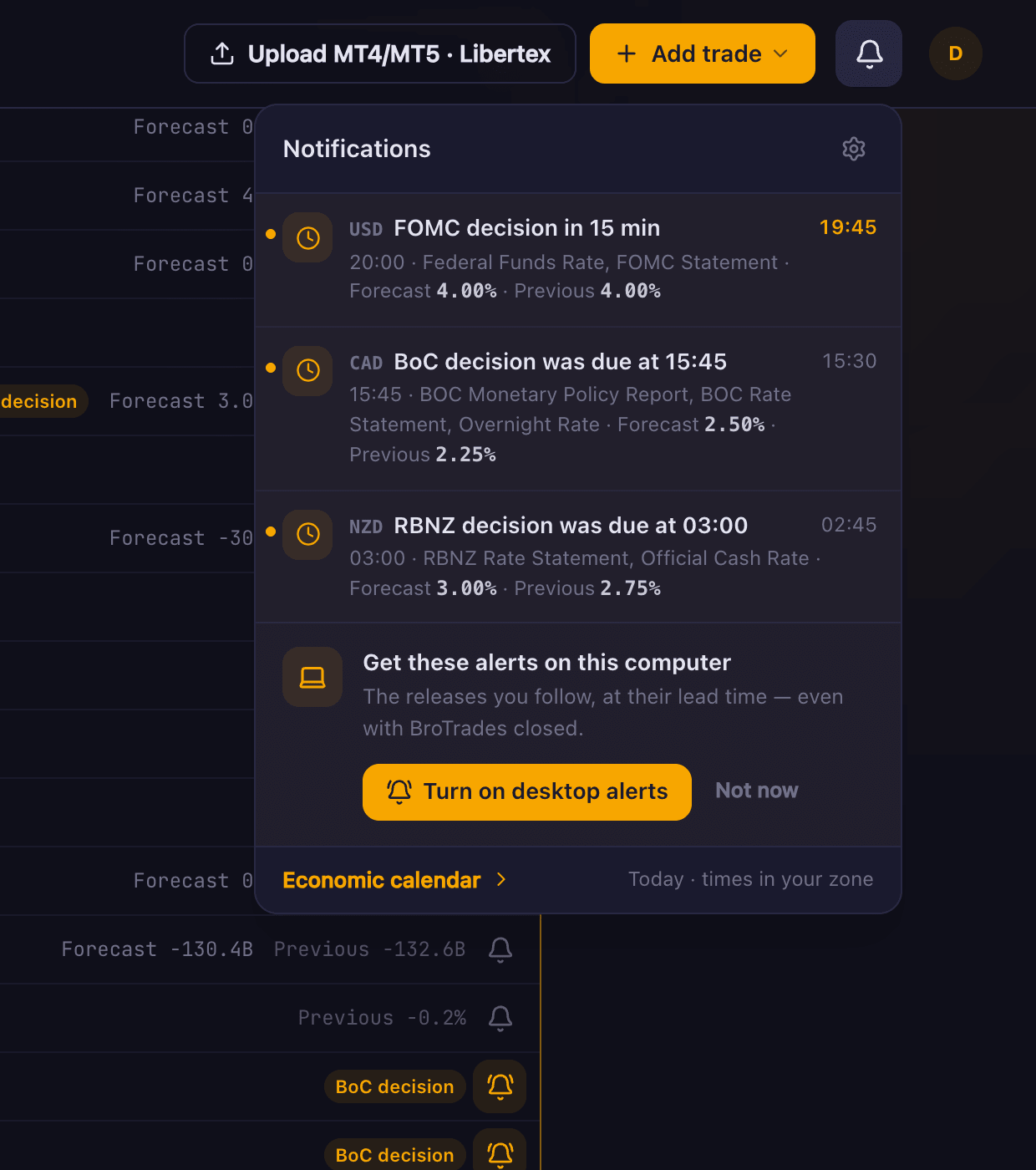
A bell now sits next to your avatar at the top of the app, on a phone and on a computer. A number on it says how many alerts you haven't seen. Open it for today's list: "FOMC decision in 15 min" at the top, with the time, the rows it covers and their forecast and previous. Earlier ones stay for the rest of the day: "BoC decision was due at 15:45".
Some releases have no fixed time. The Bank of Japan, for one, publishes when its meeting ends. For those the list says "BOJ decision expected today · time not fixed" from the start of the day.
The list keeps today only, with no history. The bell is a general inbox, and releases are the first thing in it. Other kinds of alerts will join them later.
Pick how early

Settings → Notifications lists what you follow. For each release, pick 5, 15, 30 or 60 minutes before. A new follow starts at 15. The cross stops it.
📱 Install BroTrades as an app
BroTrades now installs like an app. It opens in its own window at your dashboard, with its own icon and no browser bar. On Android, the phone's status bar and gesture bar take the app's colours: dark, or light if you switched BroTrades to light.
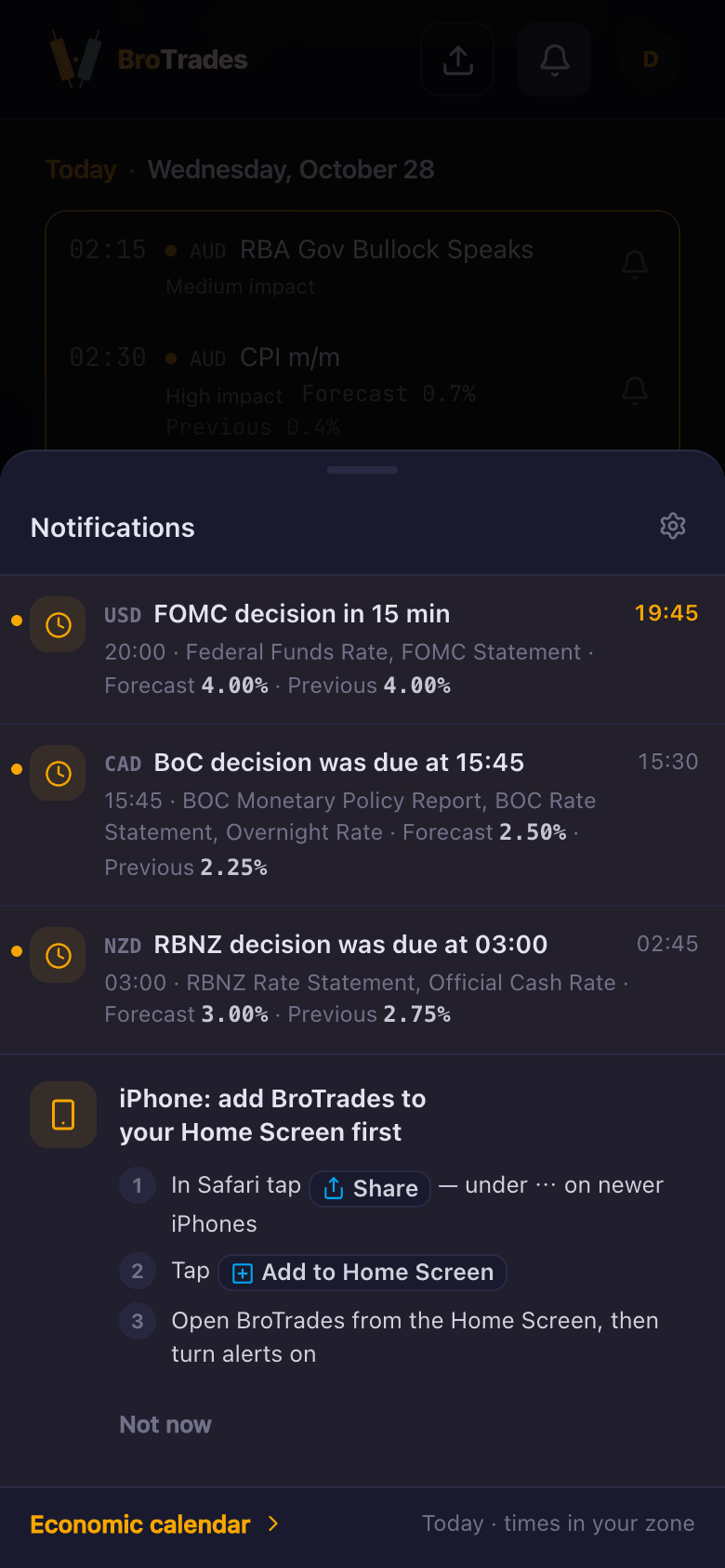
iPhone and iPad (iOS 16.4 or later):
- Open brotrades.com in Safari and sign in.
- Tap Share. On newer iPhones it is under ⋯.
- Tap Add to Home Screen.
- Open BroTrades from the Home Screen icon, then turn on alerts.
On an iPhone, alerts work only in the app you add to the Home Screen. Safari can't receive them, so there BroTrades shows these steps instead of the button.
Android: in Chrome, open the ⋮ menu and choose Install app (on some phones, Add to Home screen).
Computer: Chrome and Edge show an install icon at the right end of the address bar.
On Android and on a computer you don't need to install anything to get alerts. The browser can receive them too. The app is just quicker to open.
🚨 Alerts on your phone
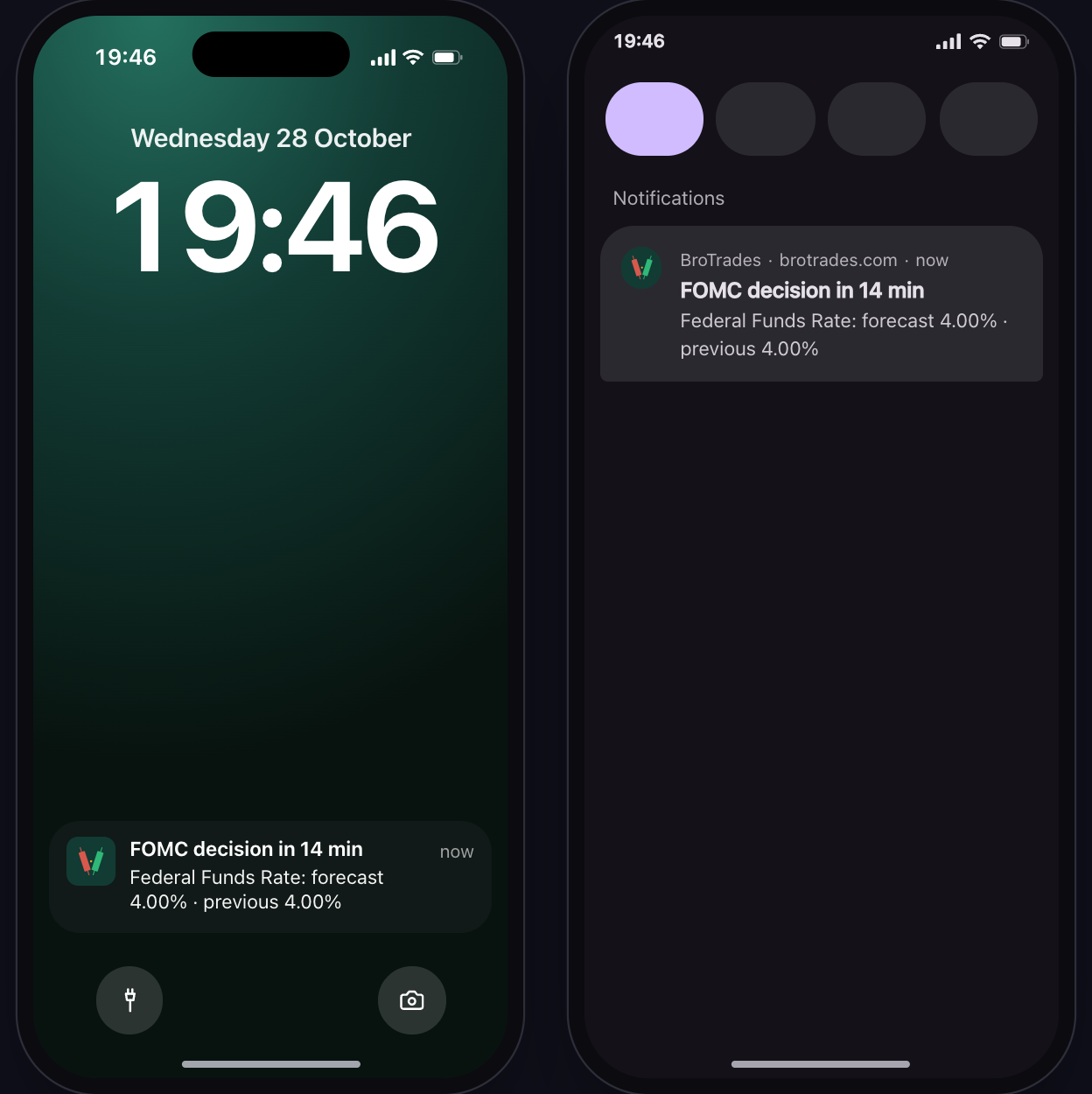
A drawing of two lock screens with the exact text the alert sends. Your phone draws it in its own style.
There are two places to turn them on:
- in the bell panel, Turn on phone alerts (it shows once you follow a release);
- in Settings → Notifications, under Phone and desktop alerts.
Your phone asks for permission only when you tap. If you're not ready, Not now hides the button in the bell panel on that device for 30 days.
What an alert says. The title is the countdown, because that is what a lock screen shows first: "FOMC decision in 14 min". Below it are the forecast and previous for each figure, up to three lines. The alert comes in the language you use BroTrades in: English, Ukrainian or Russian.
Tap it, and BroTrades opens that day in your calendar, at that release.
One alert per release. If a release moves, the new alert replaces the old one, so you don't find two on your lock screen. We don't send stale alerts: one more than 10 minutes behind, or one that would land in the last minute before the release, is dropped.
Up to four devices. Your phone, your tablet, your work computer, your home computer. A fifth one asks you to remove one first.
Releases with no fixed time get one alert on the day, at 09:00 Kyiv time: "BOJ decision expected today".
⚠️ What it doesn't do yet
- No alert when the number comes out. Our calendar feed has the time, the forecast and the previous figure, but not the actual one. An alert that says "CPI is out" without the number would be worse than none, so there isn't one.
- No email or Telegram. Alerts come in the bell and as phone and desktop notifications.
- Kyiv time, for now. "Today" in the bell, and the 09:00 alert for releases with no fixed time, follow Kyiv time. Times in the list show in your own zone. Your own time zone for the rest is coming.
- A minute or two late. We check for due alerts every two minutes, so a 15-minute alert often reads "in 14 min" or "in 13 min". The title counts from the moment we send it.
- iPhone only from the Home Screen, and on a computer only while the browser is running.
How to start
- Open the economic calendar.
- Tap the bell on the releases you trade around: FOMC, CPI, NFP.
- On your phone, open the bell and tap Turn on phone alerts. On an iPhone, add BroTrades to the Home Screen first.
The next time the Fed decides, you'll know before the candle does.