Your trading journal in ChatGPT, Claude and Codex
Your journal already knows how you trade. Now you can ask it in plain words, from the AI assistant you already use: "How did I do on Mondays this month?", "Log a long on SOL at 152.4", "What's in this statement?"
This post has two parts. The first is for ChatGPT and Claude. The second is for traders who work in a terminal, with Codex and Claude Code.
At a glance
- Live: connect ChatGPT or Claude to your journal in about two minutes. Ask for your stats, look up trades, review a week or a month.
- Live: log a trade by describing it. In ChatGPT and Claude it shows on a card first, and you save it with Confirm.
- Live: import a broker statement in the chat. You see what is in it before anything is written.
- New today: Codex CLI and Claude Code connect too, with one command.
- Never: an assistant can't place, close or change orders, see your exchange API keys, or move money.
- Beta: this is new and will keep changing.
The pictures below are our own cards and screens, drawn on a test page with made-up trades. They are not screenshots of ChatGPT or of anyone's real account.
💬 Part 1: ChatGPT and Claude
Connect in two minutes
ChatGPT
- Open Settings → Apps (in some versions, Apps & Connectors). Under Advanced settings, turn on Developer mode.
- Back in Apps, choose Create. Name it BroTrades, paste
https://brotrades.com/mcpas the address, pick OAuth for sign-in, and press Scan Tools. - ChatGPT sends you to BroTrades. Sign in if asked, read the card, and press Allow.
- Back in ChatGPT, wait for the scan to finish, then press Create.
BroTrades isn't in ChatGPT's app directory yet, so you add it yourself in developer mode. ChatGPT renames these menus from time to time.
Which plan can do what is OpenAI's call, and it keeps changing. As we write this, OpenAI's help page puts the full version, the one that can log a trade or import a statement, on Business, Enterprise and Edu. There an admin or owner adds the app for the workspace. On Plus or Pro, ChatGPT may only be able to read. You can still ask about your trades, then log or import them on the site.
Claude
- Open Customize → Connectors, press Add, then Custom → Web.
- Name it BroTrades, paste
https://brotrades.com/mcp, and press Continue. - Leave sign-in on. Under OAuth client, pick Register automatically, then press Add.
- Sign in to BroTrades and press Allow.
In older versions of Claude this lives under Settings → Connectors → Add custom connector. On Claude's free plan you can add one custom connector. On Team and Enterprise plans, an owner adds it first, then each member connects.
What you approve
Before anything connects, BroTrades shows you a card that says who is asking and what it gets. It will be able to:
- read your trades, notes and statistics;
- add trades to your journal.
An app may also ask for sign-in details, and the card lists each one it wants: who you are, your email, your name and picture, your phone number, or staying connected until you revoke it.
It can never: "Place, close or change orders on an exchange, see your exchange API keys, move money, or change your password or sign-in email (those always need a confirmation from your inbox)." That is the exact text on the card.
A trade an assistant adds is saved like one you type, and posted to the feed if you have auto-post on. What it reads goes to the assistant, and its maker handles it under their own privacy policy.
Only ChatGPT, Claude and apps on your own computer (Part 2) can connect. Any other app is turned away at this card, and nothing is shared.
Things to ask
"Show my journal"
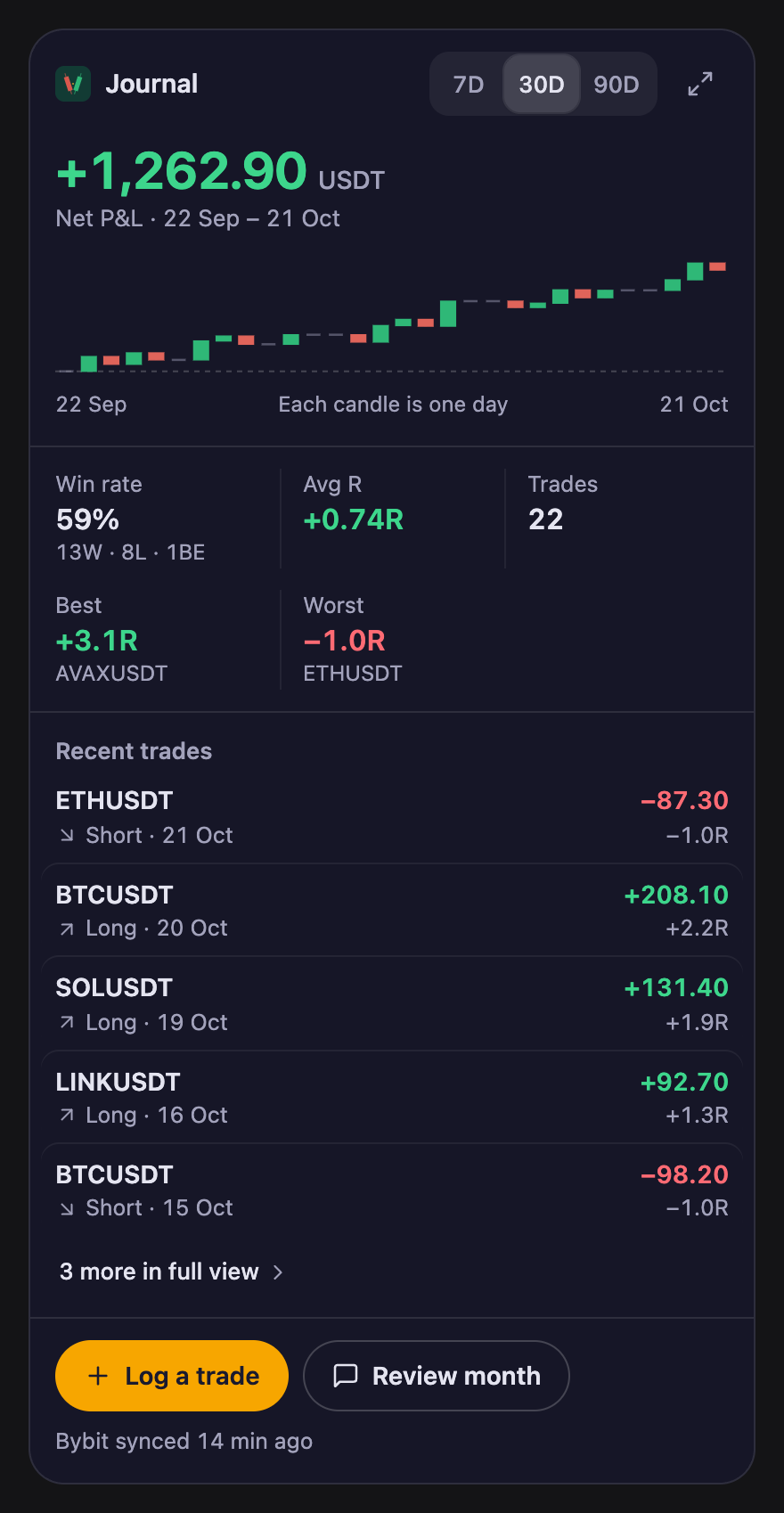
The journal card, drawn from our own code with made-up trades.
The assistant opens your journal as a card: net P&L for the last 7, 30 or 90 days, one candle per day, win rate, average R, your best and worst trade, and your latest trades. Switch the period on the card. In ChatGPT the card also lives in the sidebar as an app. Claude shows the same card.
"How did I do on Mondays this month?"
The assistant can review last week, last month or any dates you give it, up to a year at a time: how many trades you closed, how many won, your win rate, net P&L, best and worst. On the Bro and Diamond plans it also splits the period by coin (your ten most-traded), by long and short, and by day of the week. That is what answers the Monday question. Days are counted in Kyiv time, so a trade closed near midnight may land on the day before or after yours. An example reply, from a test account:
This month you closed 3 trades on Mondays: 1 win and 2 losses, net −39.60 USDT. Across all days you're at 60% and +925.40 USDT, so Mondays are your weakest day so far.
It counts closed live trades only. Backtests stay out. Other things to try:
- "List my losing shorts from last week."
- "Which coin cost me the most in September?"
- "Open my last BTC trade and read me my notes."
It answers with your history. It won't tell you what to buy or sell.
Log a trade from a sentence or a screenshot
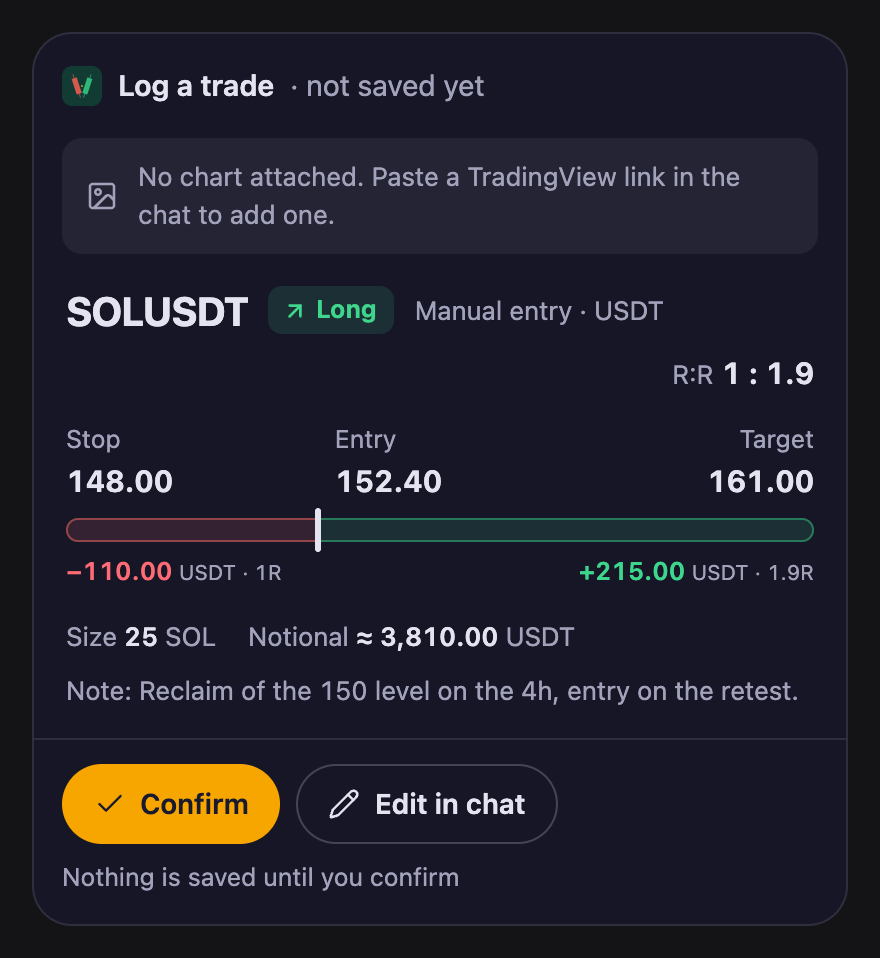
The log-a-trade card, drawn from our own code. Nothing on it is a real trade.
Say "Log a long on SOL at 152.4, stop 148, target 161, 25 SOL." Or send a chart screenshot and ask it to read the levels. Either way, the trade shows on a card first: the risk-to-reward, the money at risk, and what you make at the target.
The card checks the levels. A target on the wrong side of entry is refused. A stop at or past entry (a trailed stop) gets a warning, but you can still confirm it. If you logged the same trade in the last 10 minutes, it says so. To add your chart, paste a TradingView snapshot link: press the camera button on the chart, then Copy link. It looks like tradingview.com/x/…. A normal chart link is refused.
The card saves nothing until you press Confirm. Then the trade goes into your journal as an open trade, the same as Add trade on the site. BroTrades tells the assistant to show the card first, but can't force it to. If a trade ever lands without one, fix it on your dashboard.
Import a broker statement
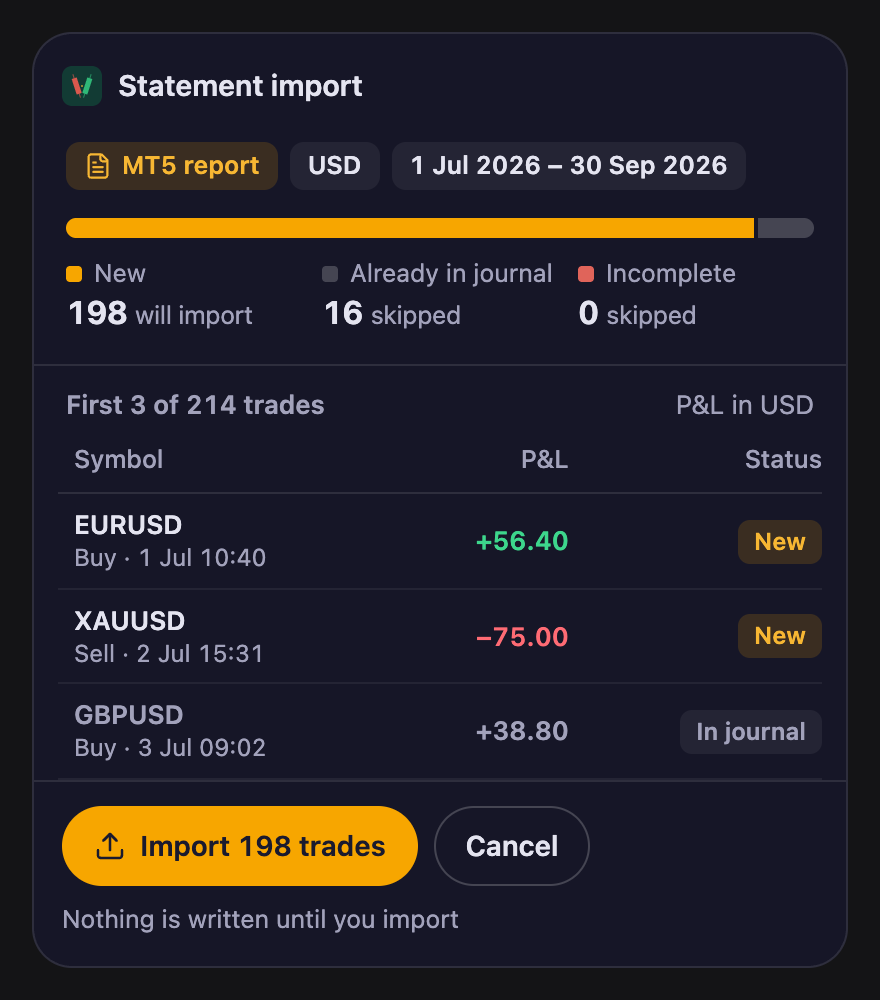
The statement card, drawn from our own code with a made-up statement.
Attach your statement in ChatGPT, or open the file with BroTrades. The card shows the format, the currency, the dates, how many trades are new, how many are already in your journal, and the first rows. Only you can press Import. The assistant can't press it for you. Trades already in your journal are skipped, never replaced.
It reads MT4 and MT5 Detailed Statements, MT5 ReportHistory and Libertex. A file in ChatGPT can be up to 3 MB (5 MB on the website). In Claude, paste the statement as text, up to 64 KB. For a bigger one, use Upload on the site. A TradingView backtest goes to the Backtesting page instead.
@-mention a trade
In the ChatGPT desktop app, type @BroTrades and then a coin, a side, win or loss, or a date, for example "@BroTrades btc march". Pick the trade from the list and ask "What went wrong here?" The assistant reads that trade, with your notes.
Turn it off
Go to Settings → Connected assistants. Each assistant is listed with the day you connected it and when it was last used. Press Revoke and it loses access within a minute. You can connect it again later.
There are limits, too: 60 requests a minute, and 20 new trades or imports an hour.
⌨️ Part 2: Codex and Claude Code
If you keep a terminal open next to your charts, you can ask the same questions there.
One command each
Codex
codex mcp add brotrades --url https://brotrades.com/mcp
Codex should open your browser to sign in straight away. If it only prints a line telling you to log in, run:
codex mcp login brotrades
The same command signs you in again later. Then codex mcp list shows brotrades as enabled, with OAuth.
Claude Code
claude mcp add --transport http brotrades https://brotrades.com/mcp
This adds BroTrades only for the folder you are in. To have it in every folder, which a scheduled job needs, put --scope user right after add.
Then run /mcp inside Claude Code, pick brotrades, and sign in.
What the consent card shows
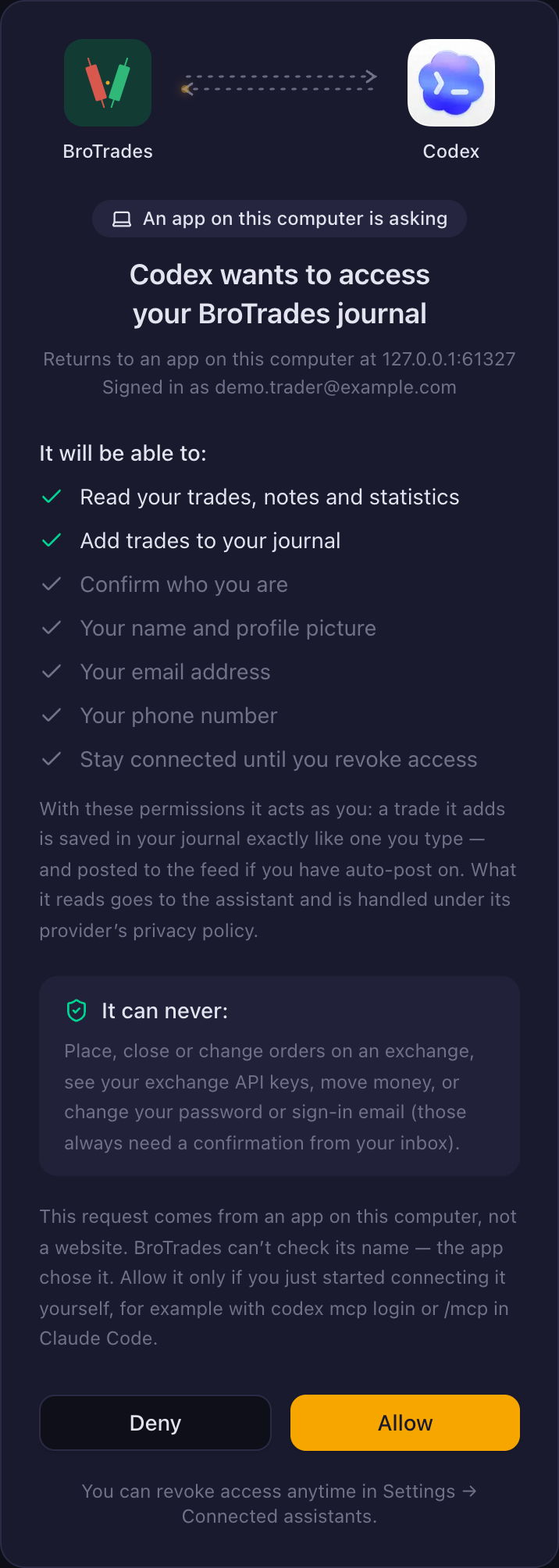
The consent card, drawn from our own code for a test address.
It is the same card as in Part 1, with three changes:
- A label at the top: An app on this computer is asking.
- The address it returns to is on your own computer, such as
127.0.0.1:61327. The port changes each time. - A warning: "BroTrades can’t check its name — the app chose it. Allow it only if you just started connecting it yourself."
That last line matters. We can check a website by its address. An app on your computer can call itself anything. So press Allow only right after you ran the command yourself. An app on your computer also has to use a secure sign-in, or the card turns it away.
If you allowed an app before and it asks again, BroTrades doesn't send it back quietly. It asks you to press Continue first.
Things to ask
These are examples, written in the shape the tools really answer in, with the made-up trades from the cards above. Your assistant uses its own words, so yours will read differently.
"List my last 5 trades"
> list my last 5 brotrades trades

Your last 5 closed trades (P&L in USDT):

21 Oct  ETHUSDT   Short   −87.30  −1.0R
20 Oct  BTCUSDT   Long   +208.10  +2.2R
19 Oct  SOLUSDT   Long   +131.40  +1.9R
16 Oct  LINKUSDT  Long    +92.70  +1.3R
15 Oct  BTCUSDT   Short   −98.20  −1.0R

Historical journal data, not investment
advice.
"Which coins lost me money this month?"
> which coins lost me money this month?

1–21 Oct: 15 closed trades, 9 won, 5 lost,
1 break-even. Win rate 60%, net +925.40 USDT.

By coin, net USDT:
BTCUSDT  4 trades  +331.00  2 losses
SOLUSDT  3 trades  +170.70  1 loss
ETHUSDT  3 trades  +156.10  1 loss
XRPUSDT  1 trade    −84.90  the only red one

By side: longs +860.70 (10 trades),
shorts +64.70 (5).
The split by coin and side comes with the Bro and Diamond plans, as in Part 1.
"Read my notes on this month's losses. What keeps coming up?"
The assistant opens each losing trade and reads what you wrote. This is where a journal you actually fill in pays off.
"Log this trade"
> log this trade: long SOL 152.4, stop 148,
  target 161, size 25

Logged SOLUSDT long as an open trade:
entry 152.4, stop 148, target 161, size 25.
A terminal has no card and no Confirm button, so the trade is saved as soon as the assistant runs the tool. Want to check it first? Say "show it to me before you log it". If your tool asks before it runs a tool, that question is your last check. It needs a size; leave it out and it will ask. It can add trades but can't change or delete them, so fix a typo on your dashboard.
Tip: a daily review in one line
Both tools can run a single question and print the answer, so you can make a habit of it with a shell alias or a scheduled job.
codex exec --skip-git-repo-check \
  "From my BroTrades journal:
today's closed trades, win rate, net P&L,
and every trade with no notes yet.
Keep it short."
claude -p "From my BroTrades journal:
today's closed trades, win rate, net P&L,
and every trade with no notes yet.
Keep it short." \
  --allowedTools \
  mcp__brotrades__get_stats \
  mcp__brotrades__list_trades \
  mcp__brotrades__get_trade \
  mcp__brotrades__review_period
Without --skip-git-repo-check, Codex refuses to run outside a Git repository, and an alias or a scheduled job usually starts in your home folder.
The review only reads. The Claude Code line allows the four read tools and nothing else, so it can't log a trade. If Codex asks before it runs a tool, every read tool is marked read-only, so those are safe to allow. Trades with no notes yet are your to-do list for the evening.
🔒 What stays the same
- An assistant never places, closes or changes an order, never sees your exchange API keys, and never moves money. The keys you use for sync stay on our server, encrypted, and BroTrades uses them only to read. Make them read-only at the exchange: we can't block a key with more rights, so that setting is what protects you.
- It answers with your history, not advice.
- You can cut it off at any time in Settings → Connected assistants.
The full technical details, with every tool, are on the developer page.
How to try it
- Make sure your dashboard has some trades in it. Connect an exchange or upload a statement first if it's empty.
- Add BroTrades to ChatGPT, Claude, Codex or Claude Code, using the steps above.
- Ask "Show my journal", then ask the question you never had time to work out by hand.